App Icon
The Lazyflow icon features two interlocking rings representing the weaving of tasks and time, with a compass star at the center symbolizing direction and focus.

Dark
Primary app icon with teal gradient background

Liquid Glass
iOS 26 glass effect variant

Tinted
Grayscale variant for tinted icon mode
Onboarding
First-time user experience with permission requests following Apple's Human Interface Guidelines.
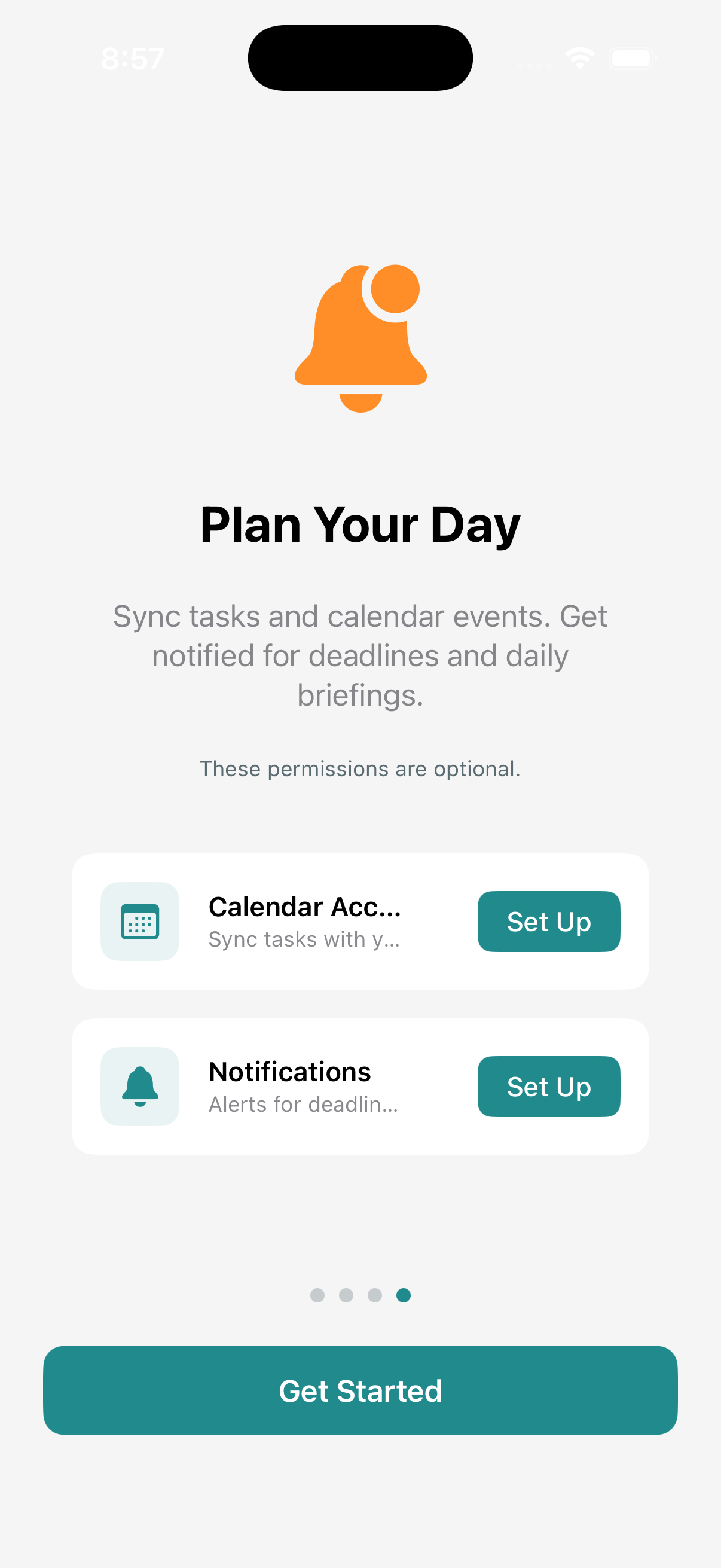
Permissions
Optional calendar and notification setup with clear benefit descriptions
App Screens
Complete visual reference for all screens in Lazyflow. Toggle between dark and light mode to see both appearances.
Today - Empty State
Celebratory empty state when all tasks are complete
Add Task Sheet
Quick task entry with date chips and options
Add Task - Filled
Task entry with AI-powered suggestions
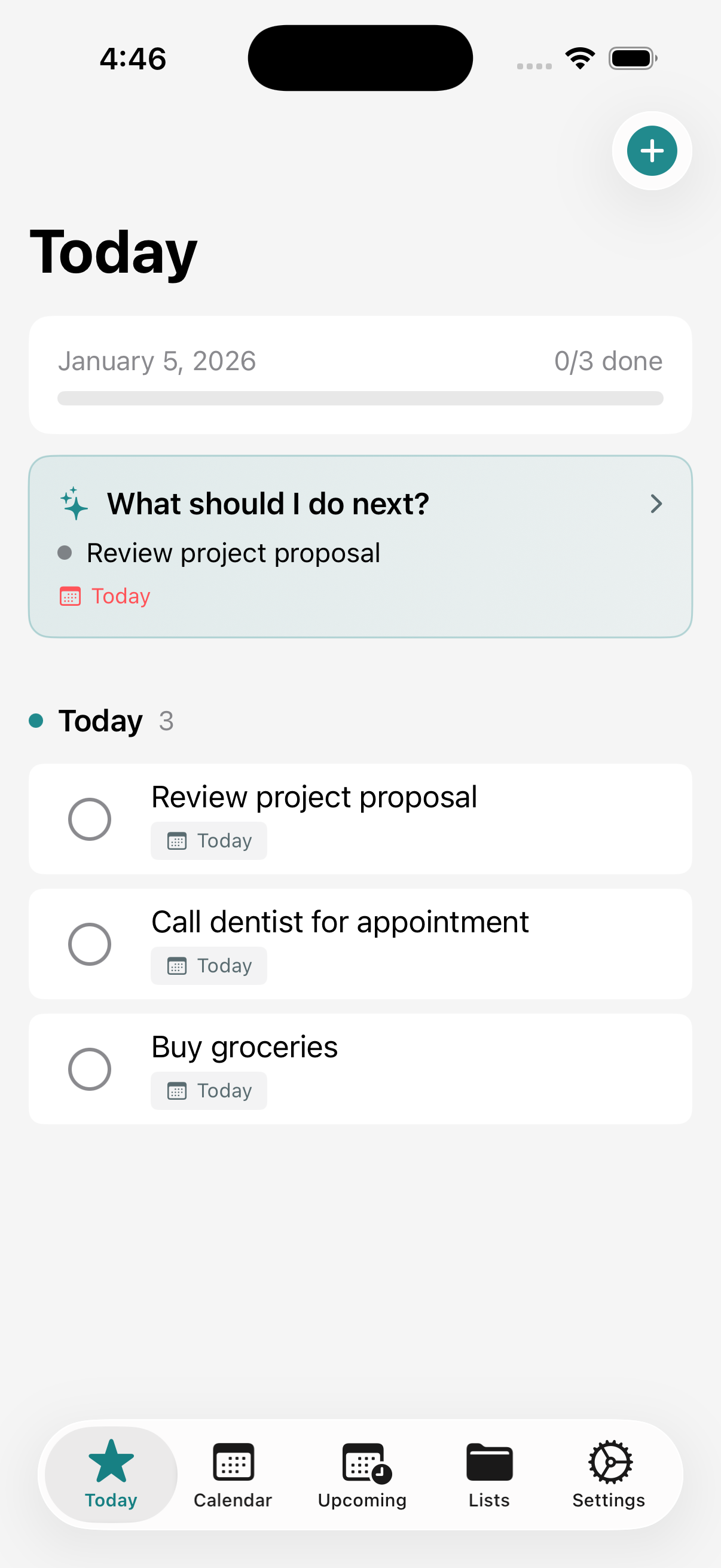
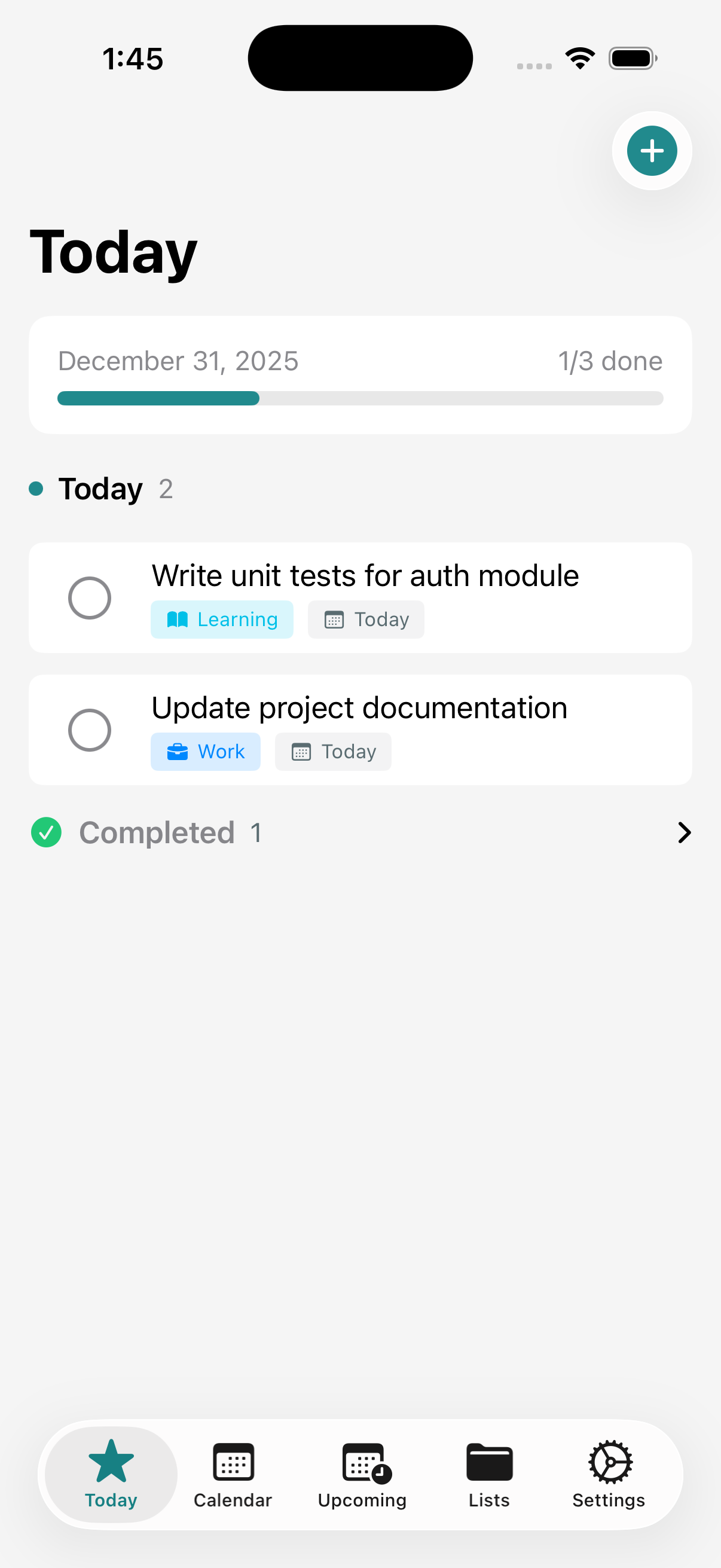
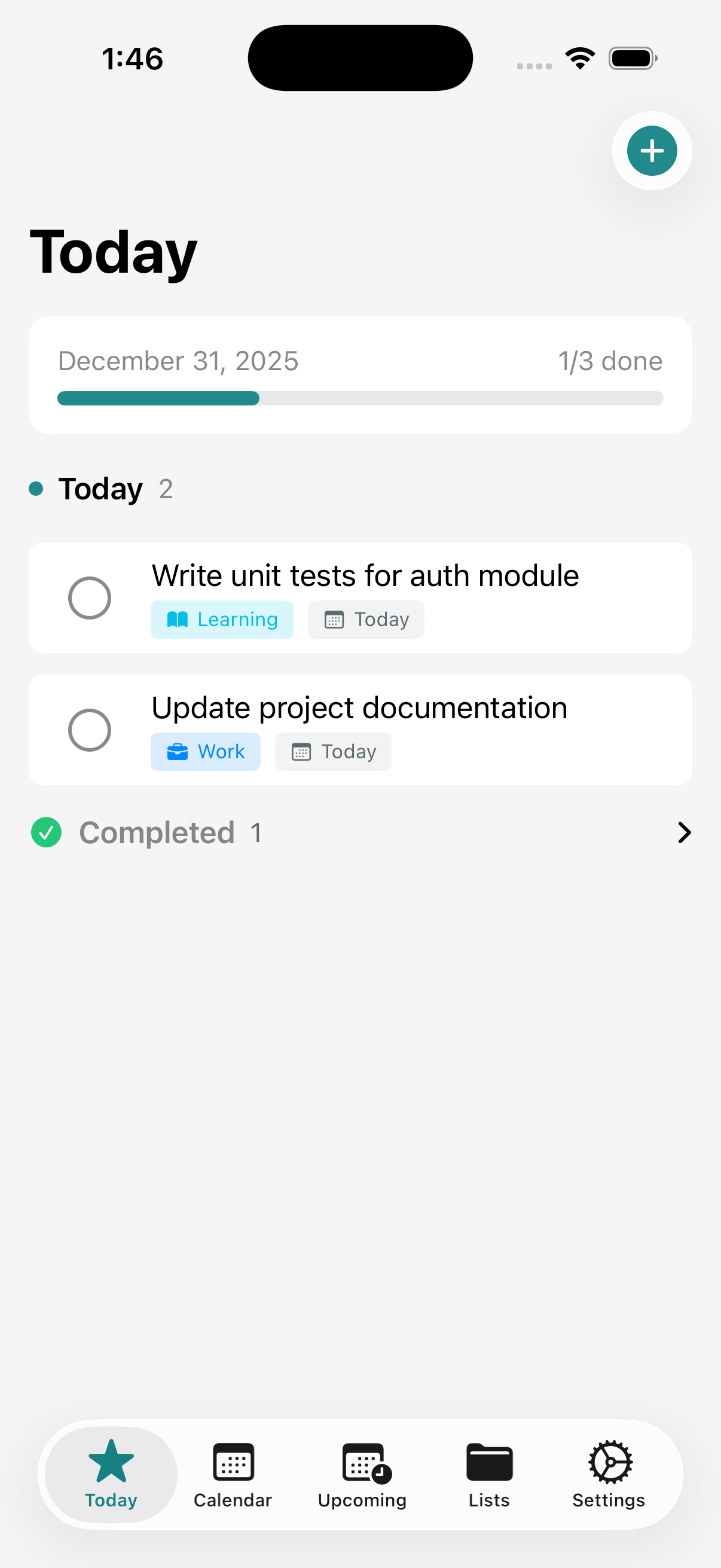
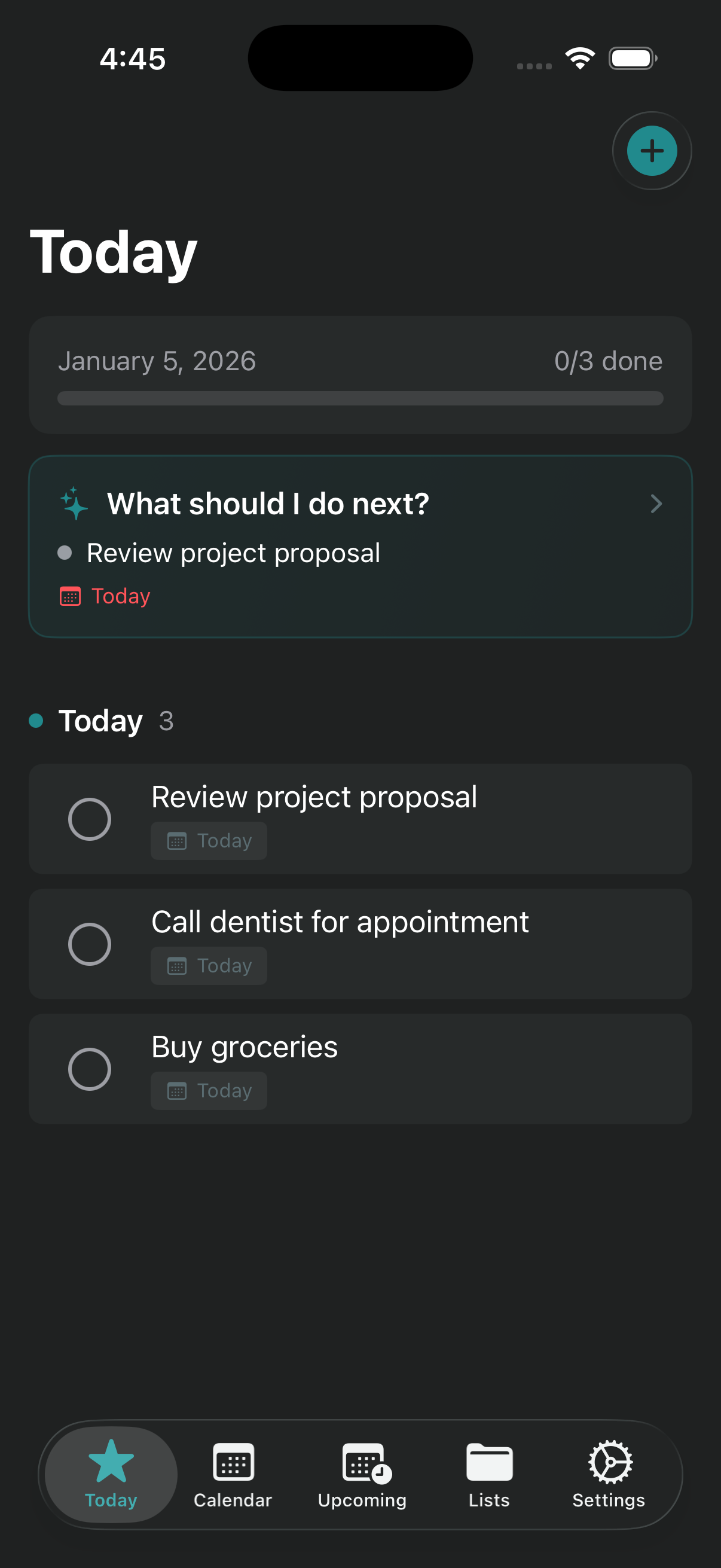
Today - With Tasks
Task list with auto-categorization tags
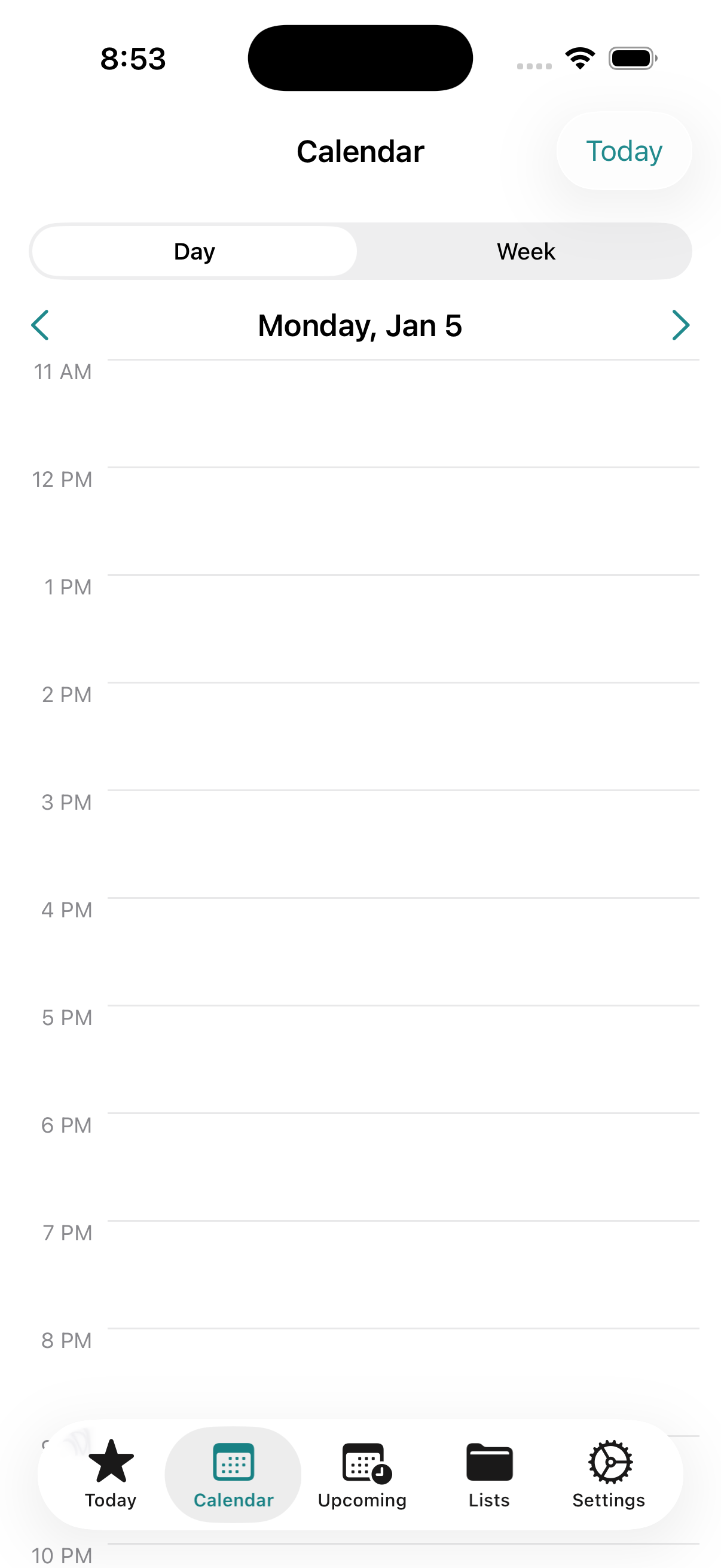
Calendar View (v0.2.0)
Week/Day view with EventKit integration
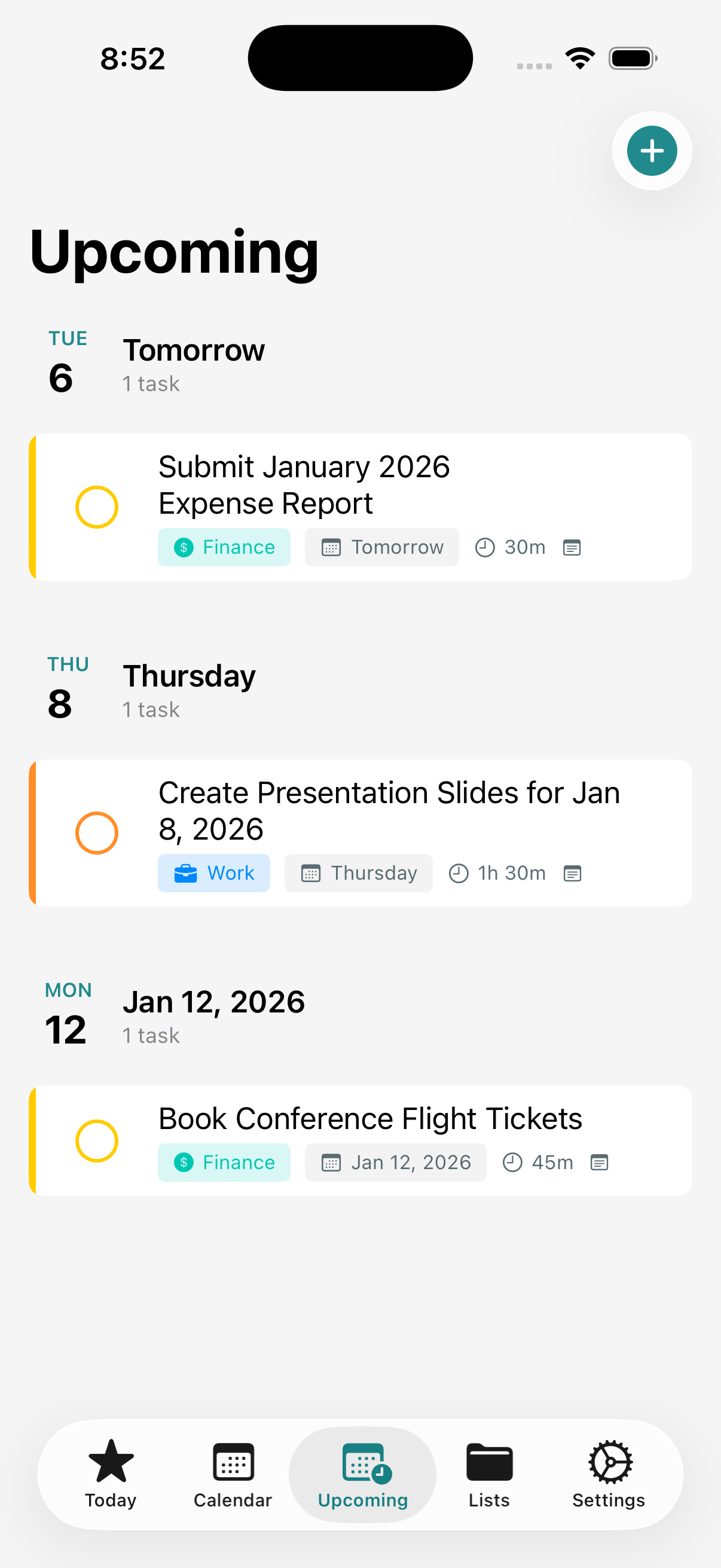
Upcoming - Empty
Future tasks organized by date
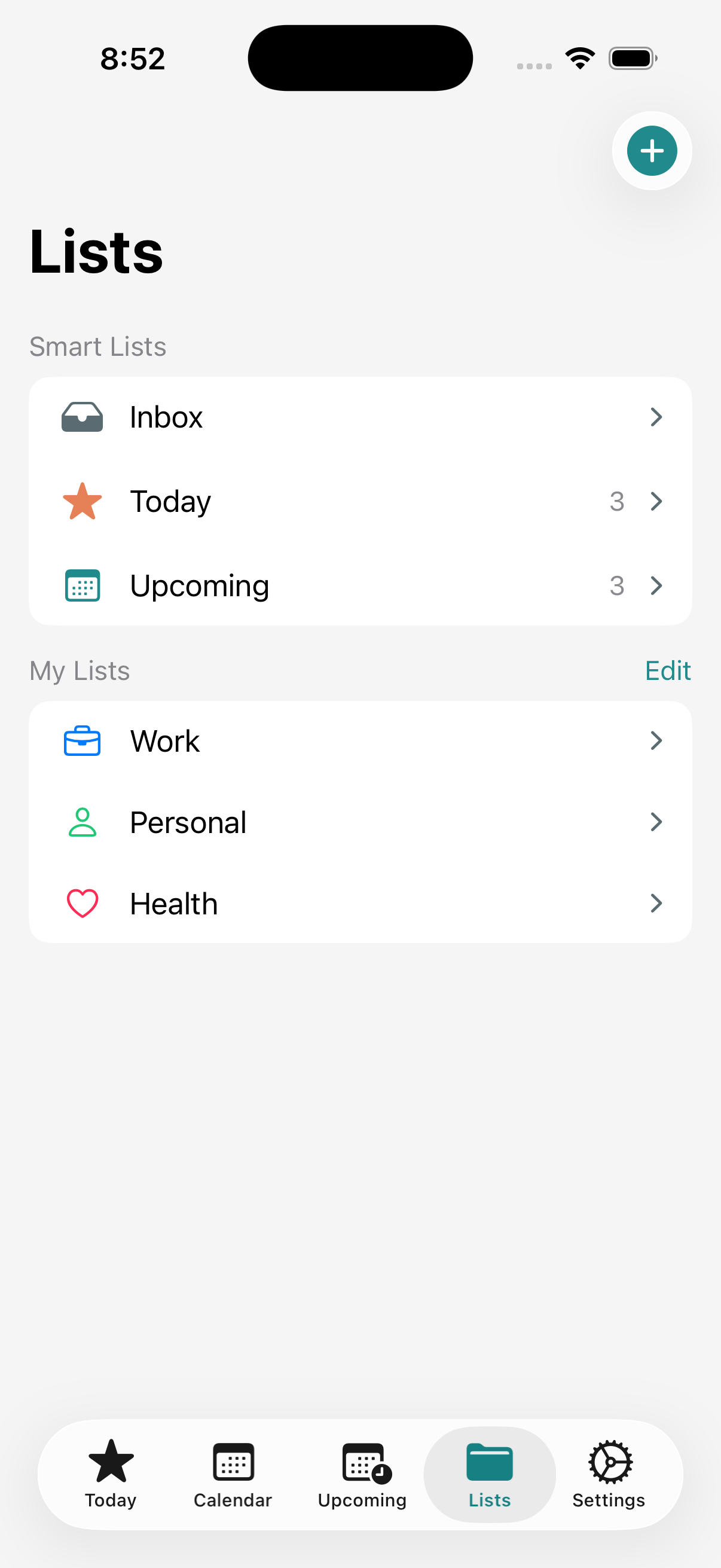
Lists
Smart lists and custom project organization
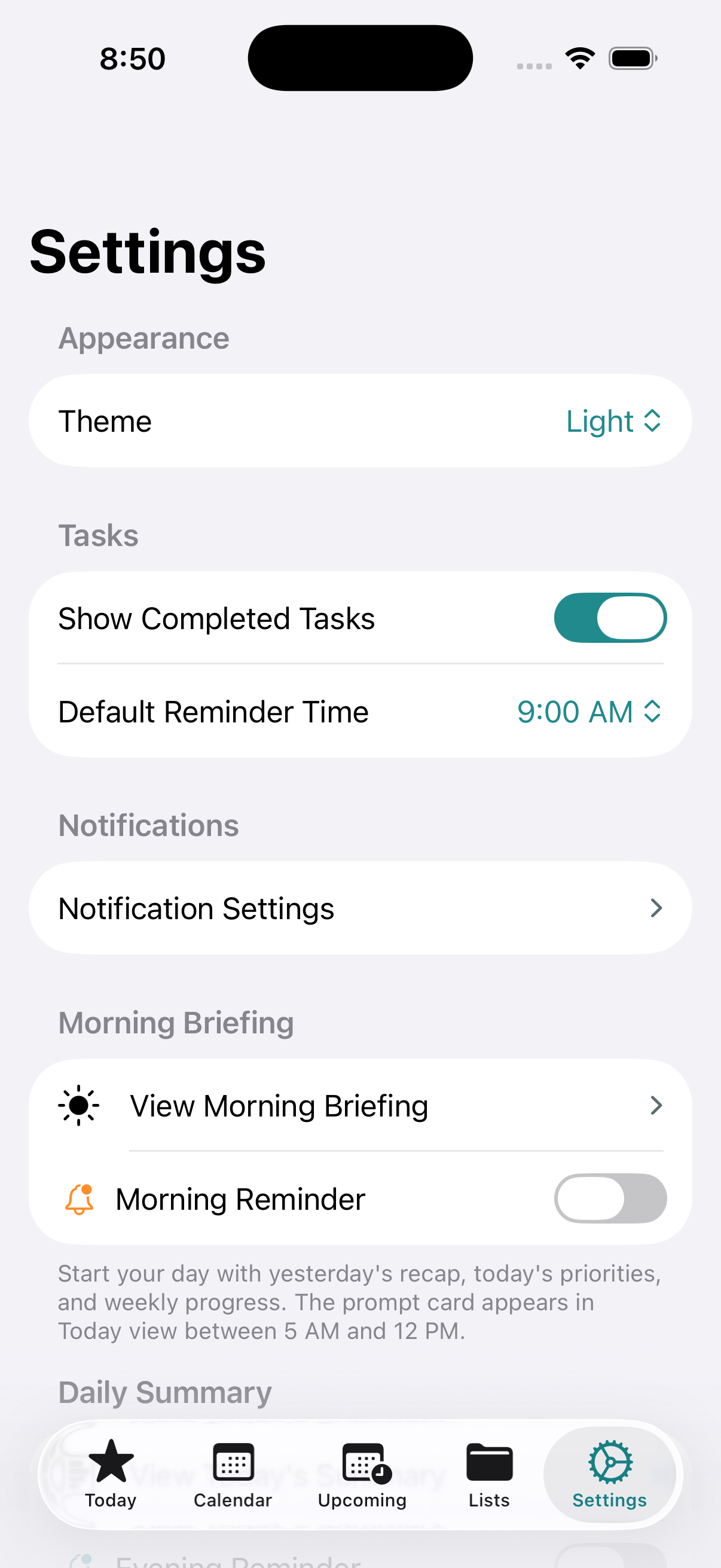
Settings
App preferences with AI provider selection
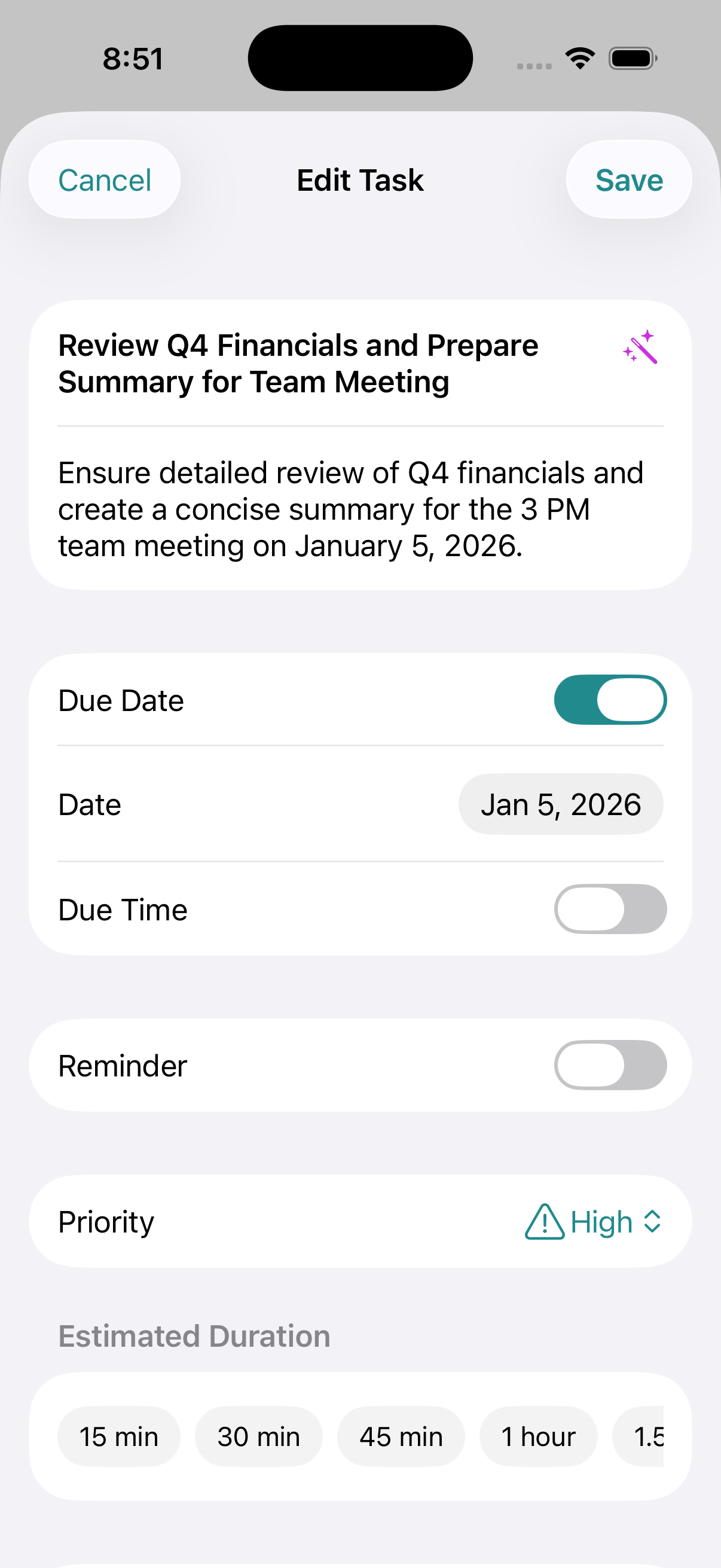
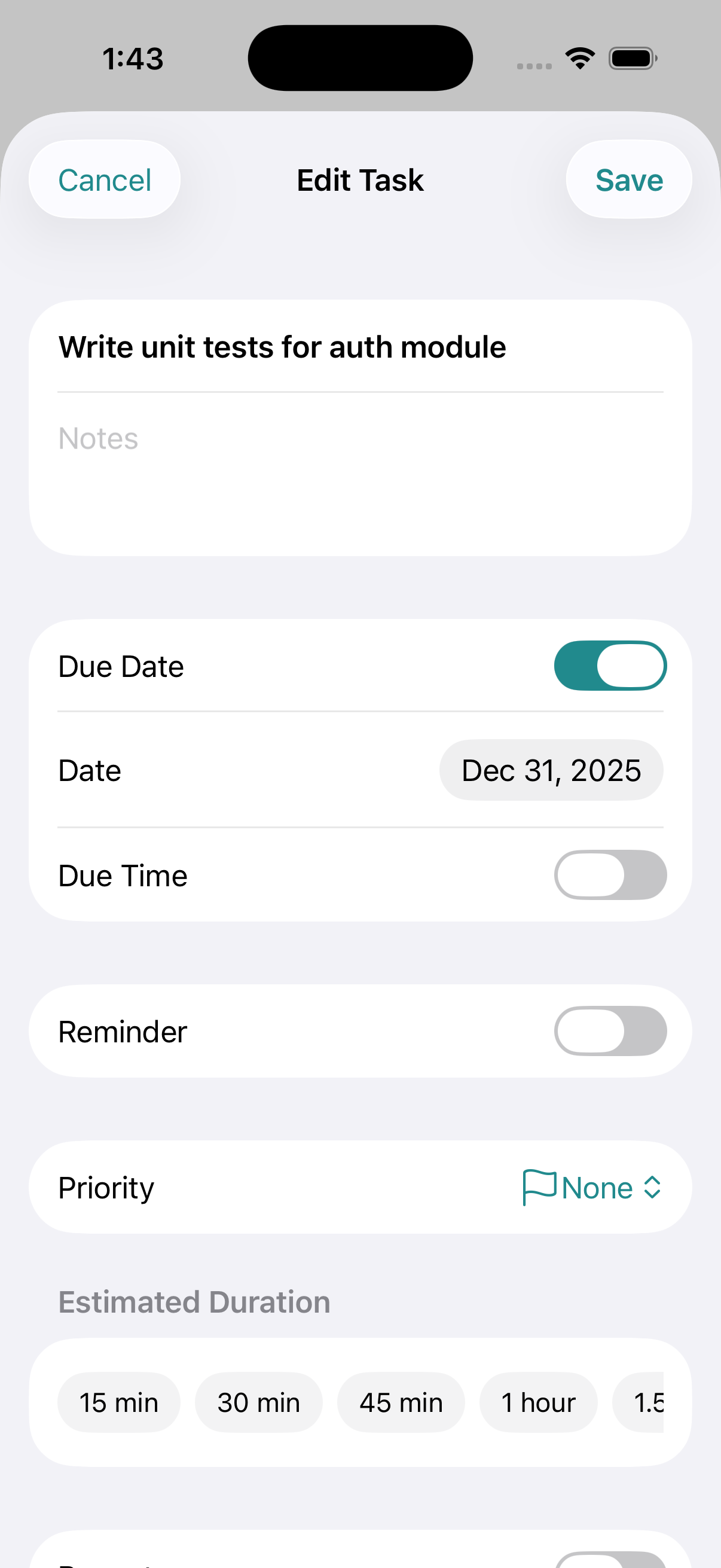
Task Detail
Full task editing with duration estimates
AI Features
Lazyflow uses Apple Intelligence (iOS 26+) for intelligent task analysis and suggestions.
AI Analysis
Refined title, description, category, duration, and priority suggestions
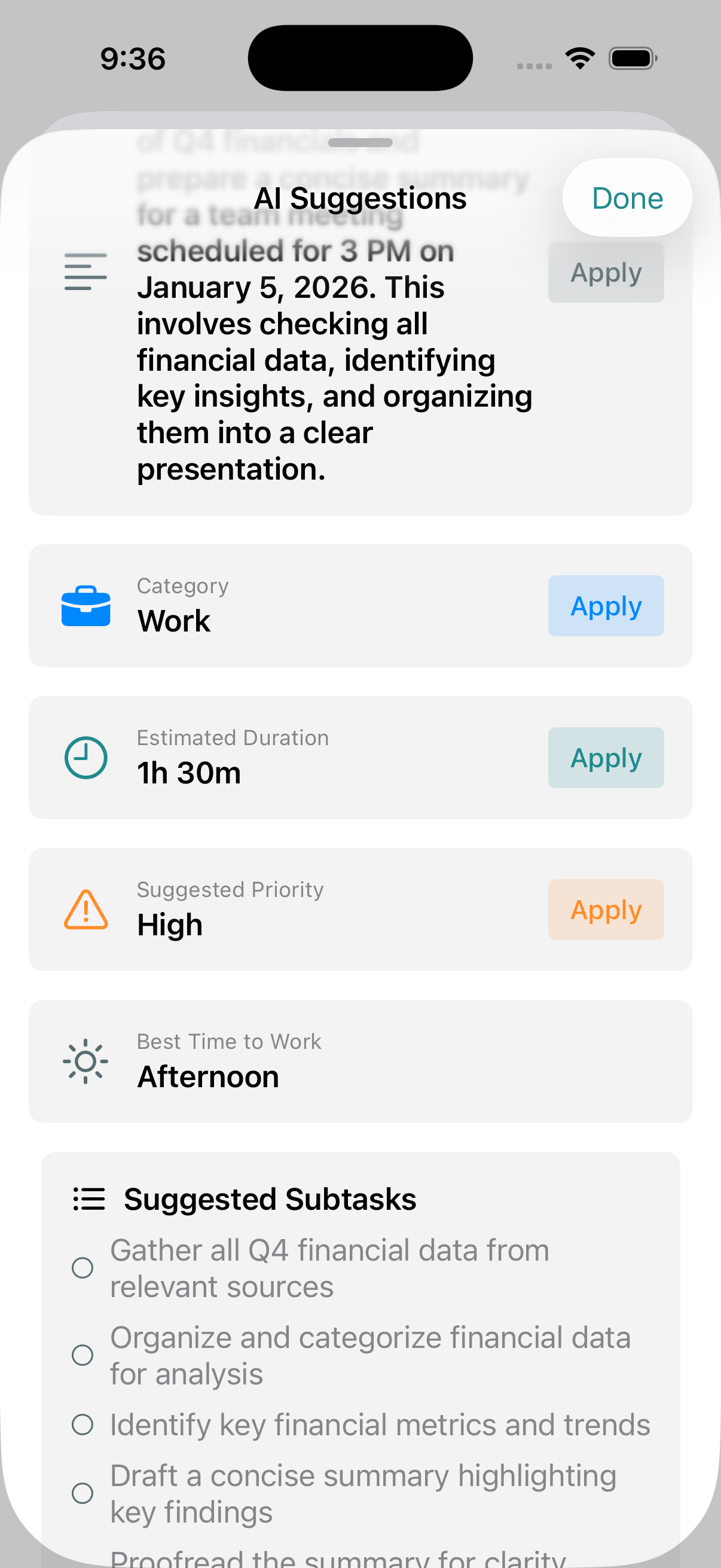
AI Subtasks
Best time to work and intelligent subtask breakdown
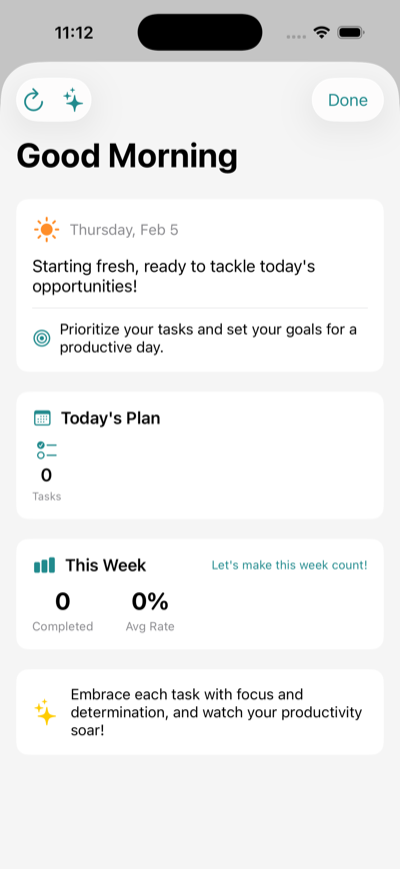
Morning Briefing
AI-generated daily planning with calendar context and productivity tips
Next Up Card (v1.9.0)
Single focused task suggestion with state-dependent actions. Replaces the multi-card top-3 design with a single AI-selected task and two action row states: idle (Start + Focus + Later) and in-progress (Pause + Focus + live timer).
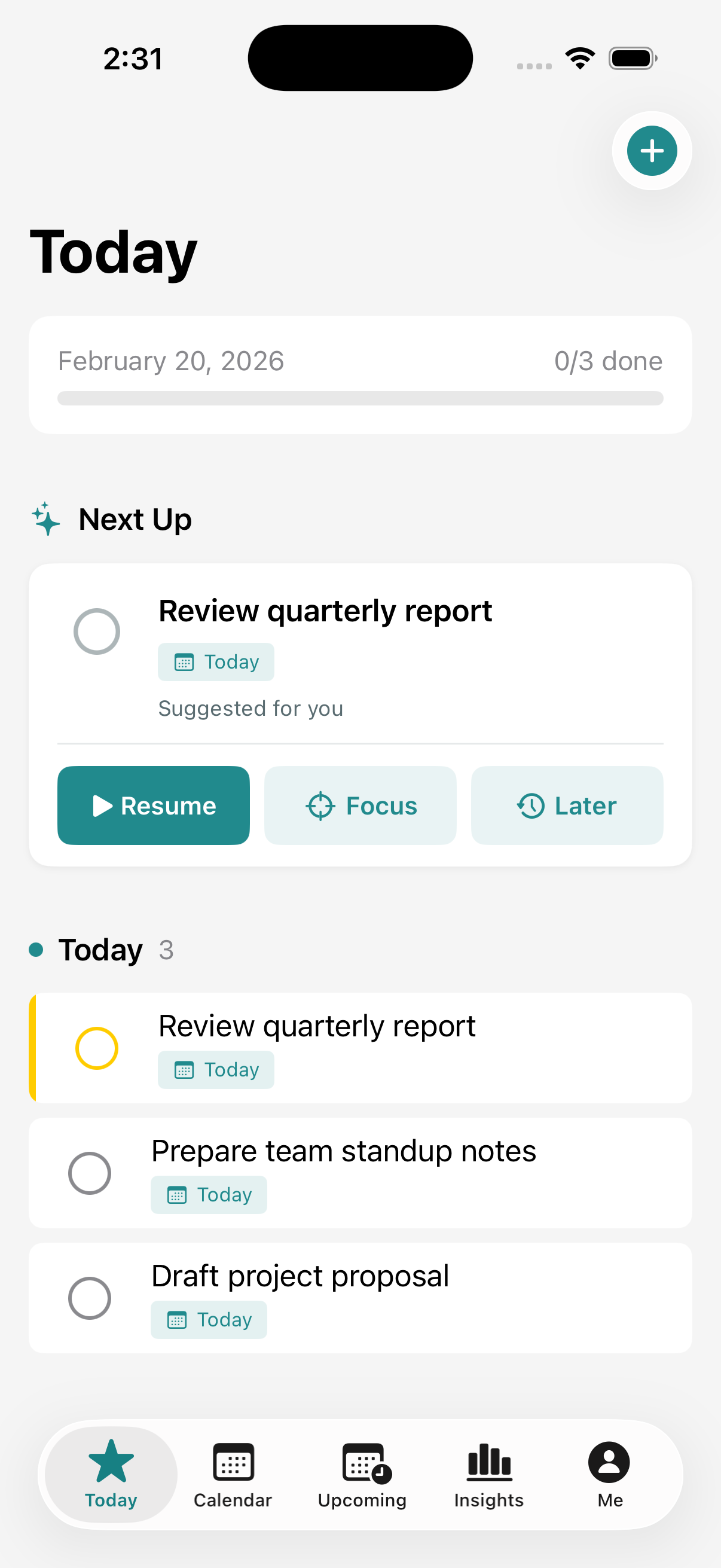
Idle State
Start/Resume + Focus + Later actions with AI reason and meta badges
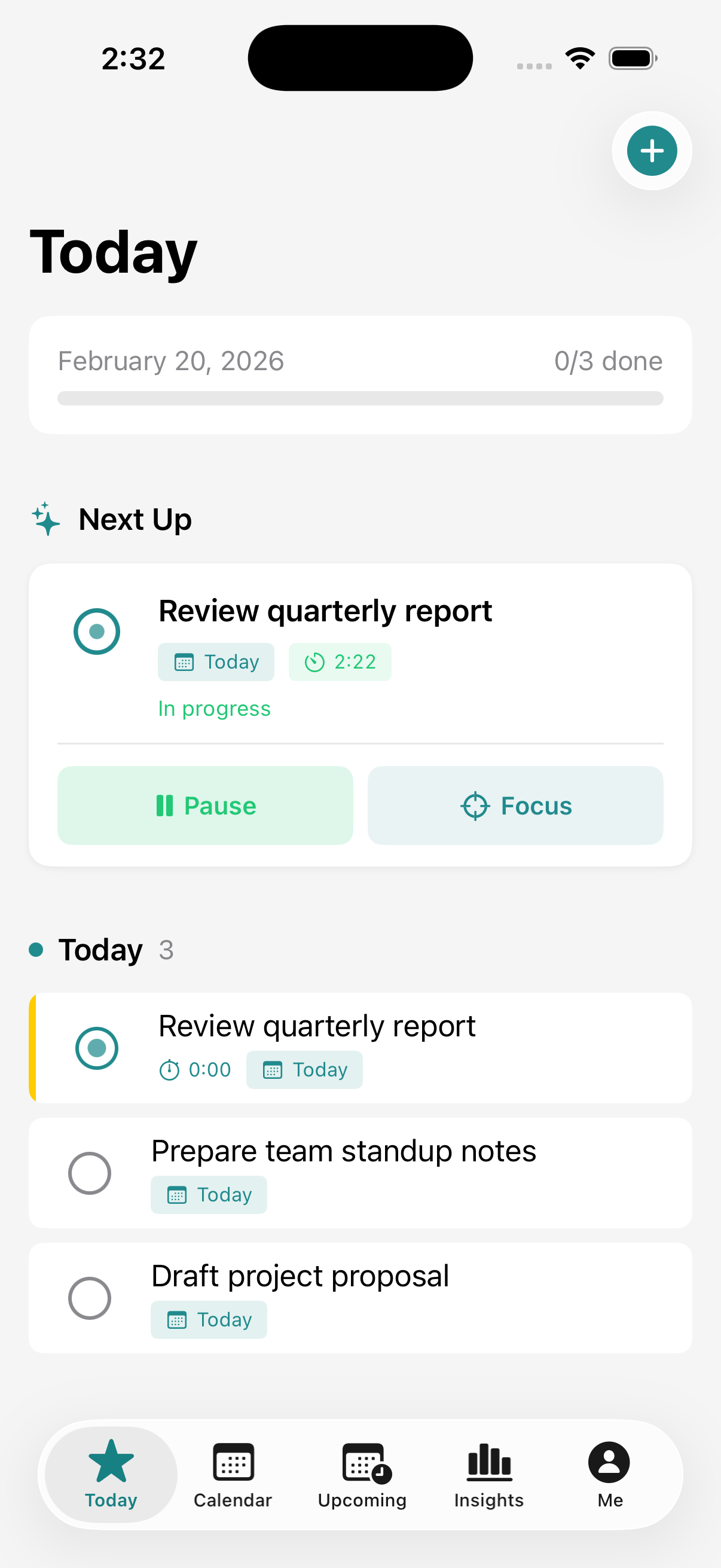
In Progress
Pause + Focus with live elapsed timer, pulsing dot, and progress bar
Focus Mode (v1.9.0)
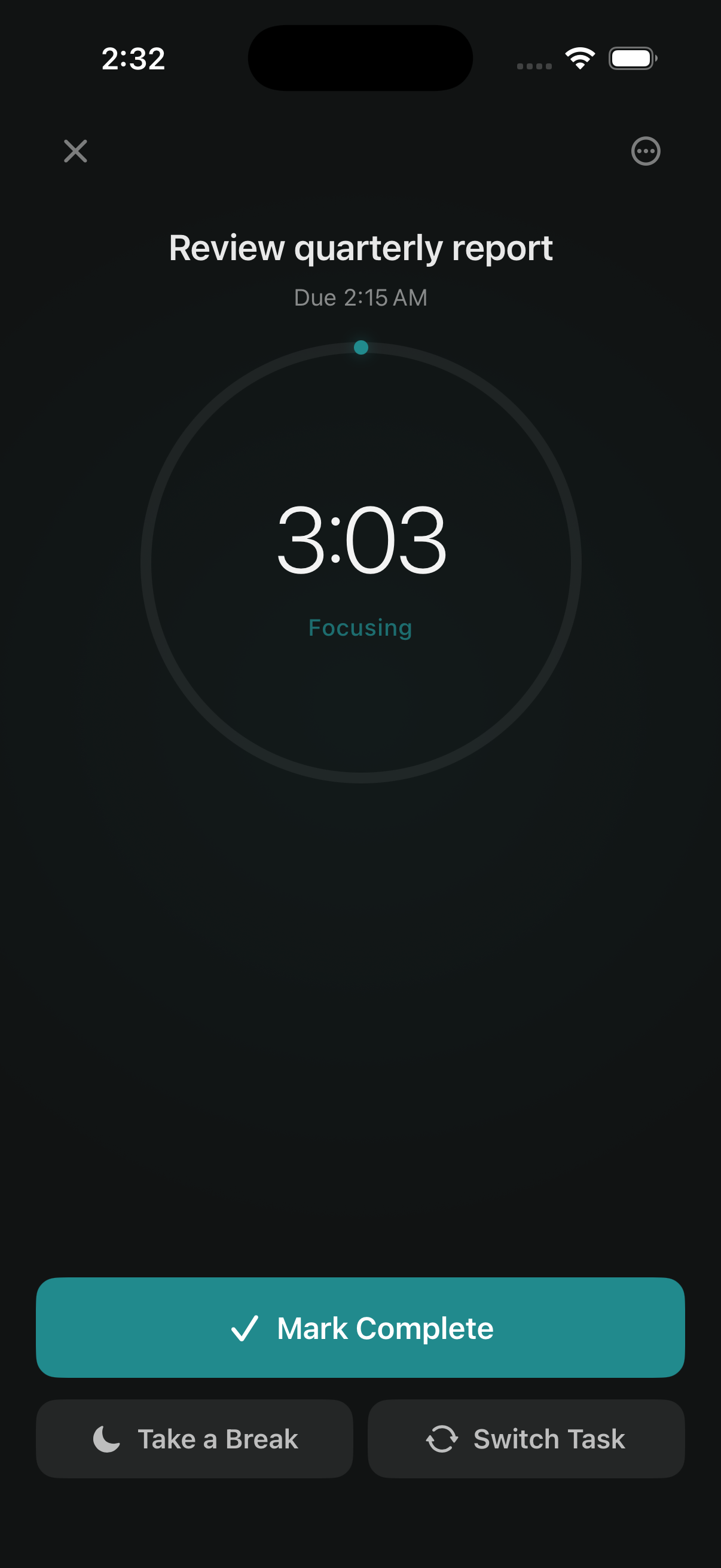
Full-screen immersive experience for deep work. Features a 240px timer ring with progress tracking, ambient gradient background, and a minimal action bar. Enter from the Next Up card's Focus button; return via the floating ReturnToFocusPill.
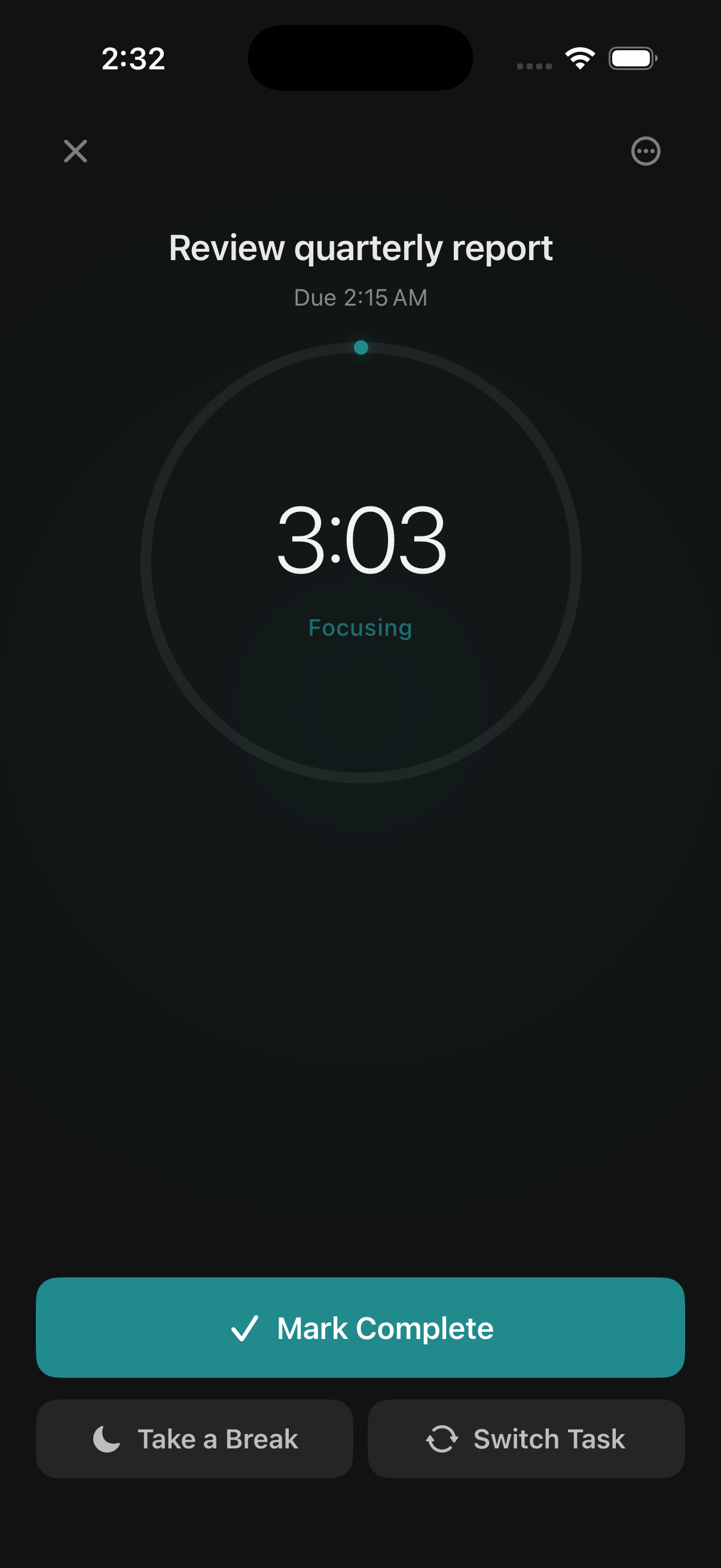
Focus Mode
Timer ring with elapsed time, Mark Complete + Break + Switch actions
Subtasks
Break down complex tasks into manageable subtasks with automatic parent completion.
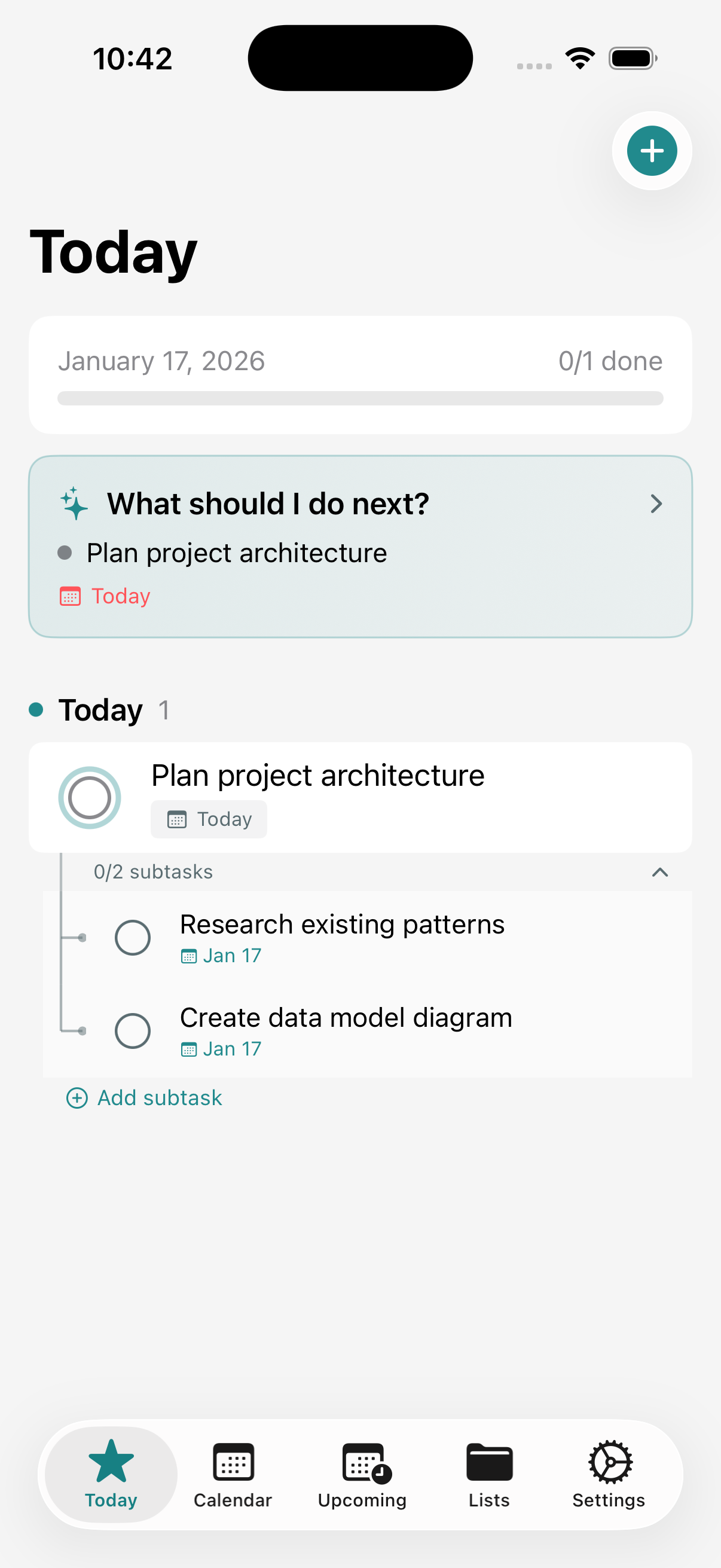
Subtasks Expanded
View and manage subtasks inline with progress tracking
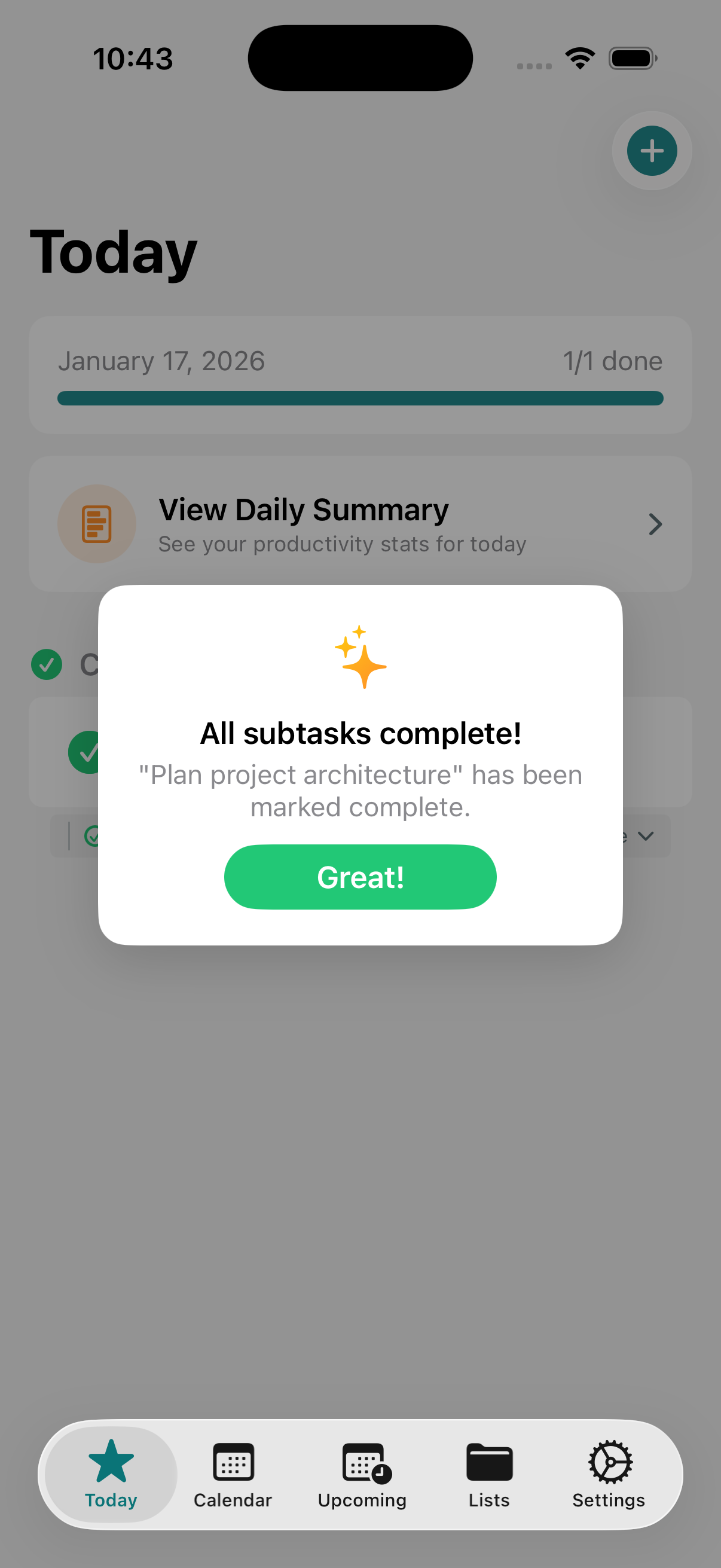
Auto-Complete
Parent task automatically completes when all subtasks are done
Task History
Review completed tasks with date filtering, search, and productivity stats.
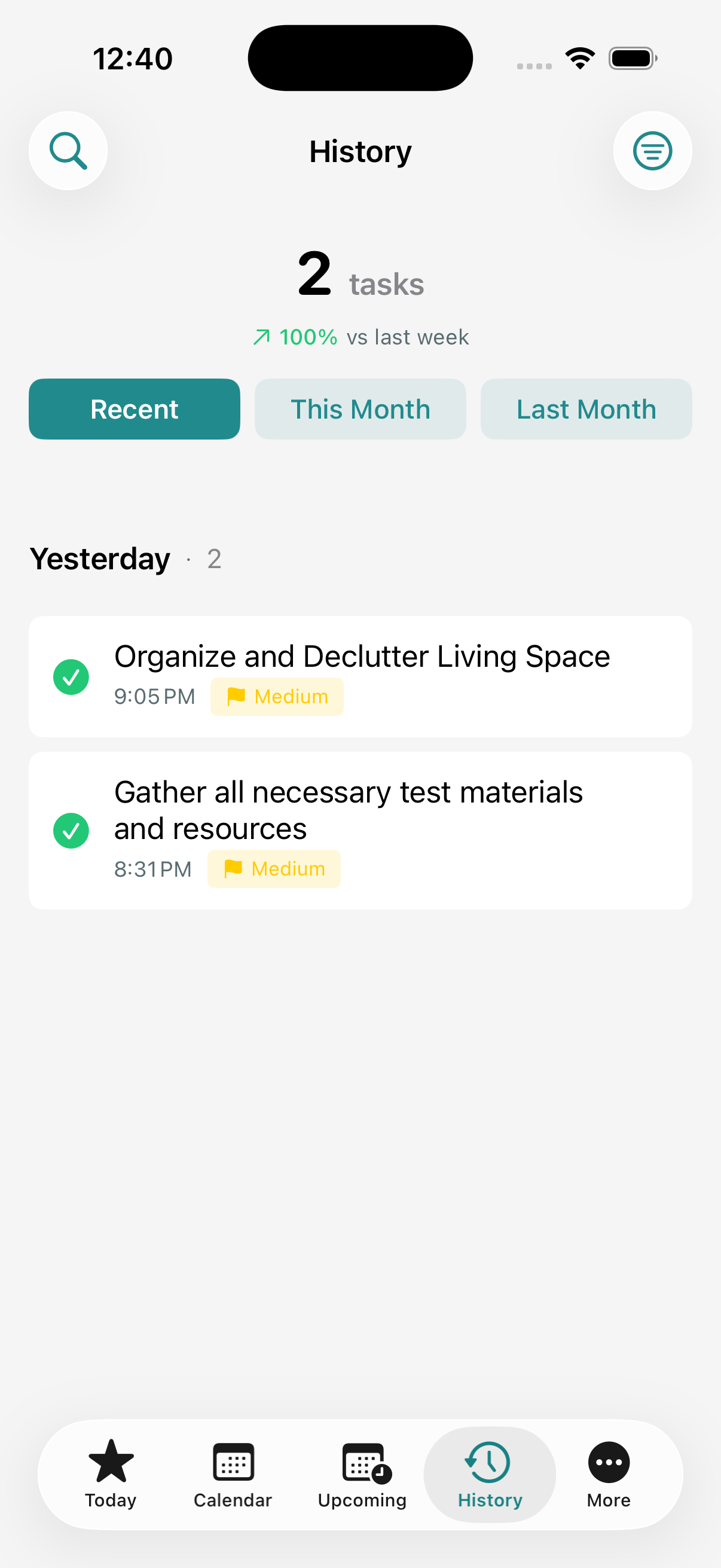
History View
Completed tasks with date sections and productivity stats
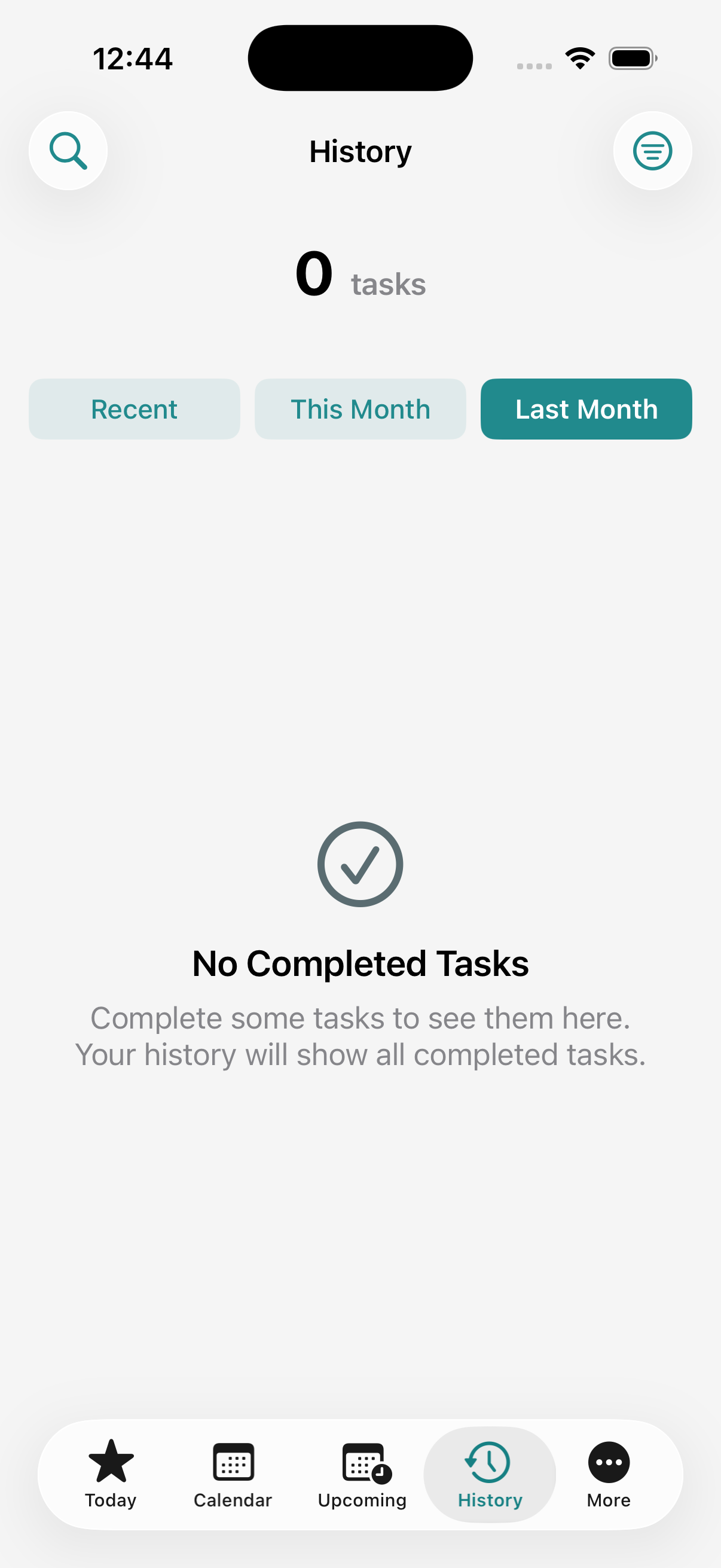
Empty State
Encouraging message when no tasks completed yet
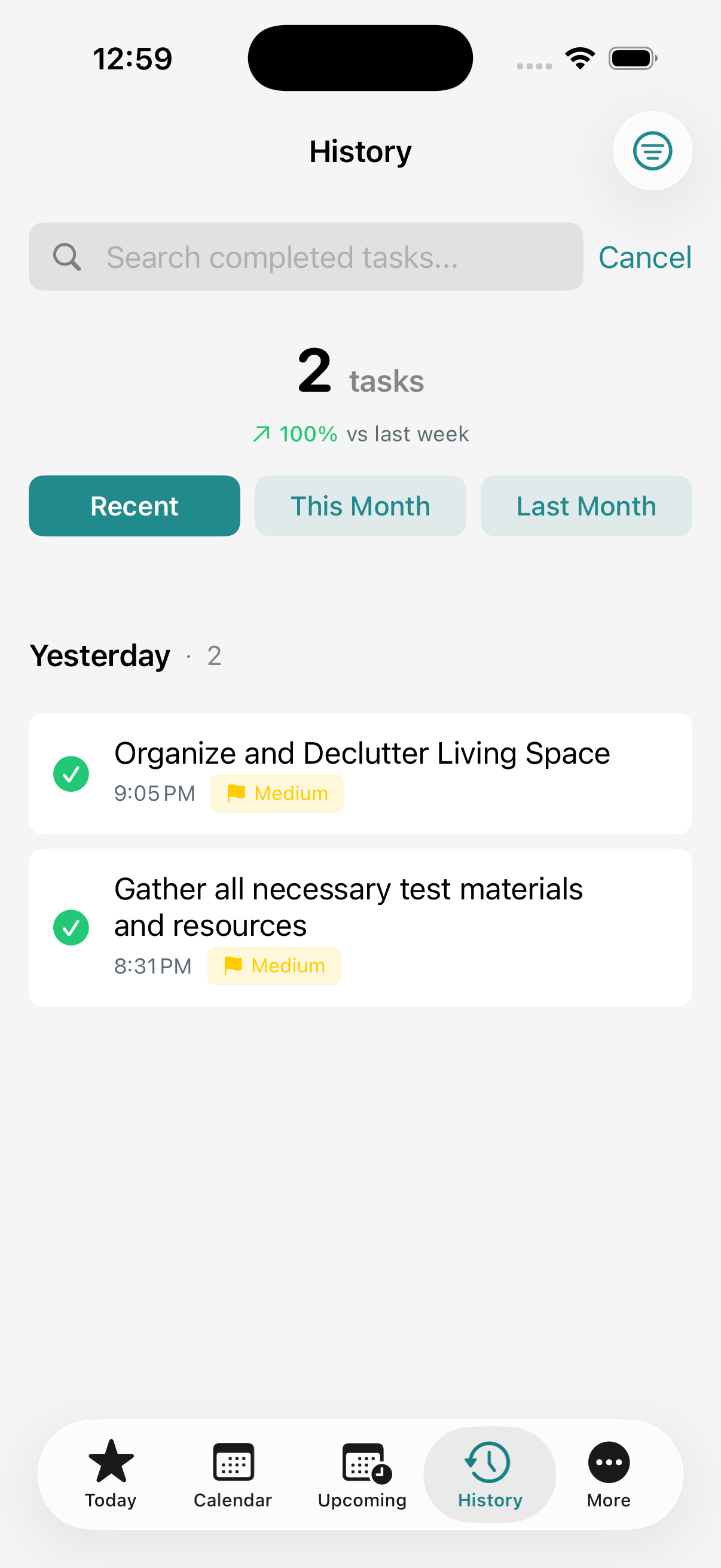
Search
Search through completed tasks with date filters
Custom Categories
Create and manage custom categories with personalized colors and icons. AI suggestions include your custom categories.
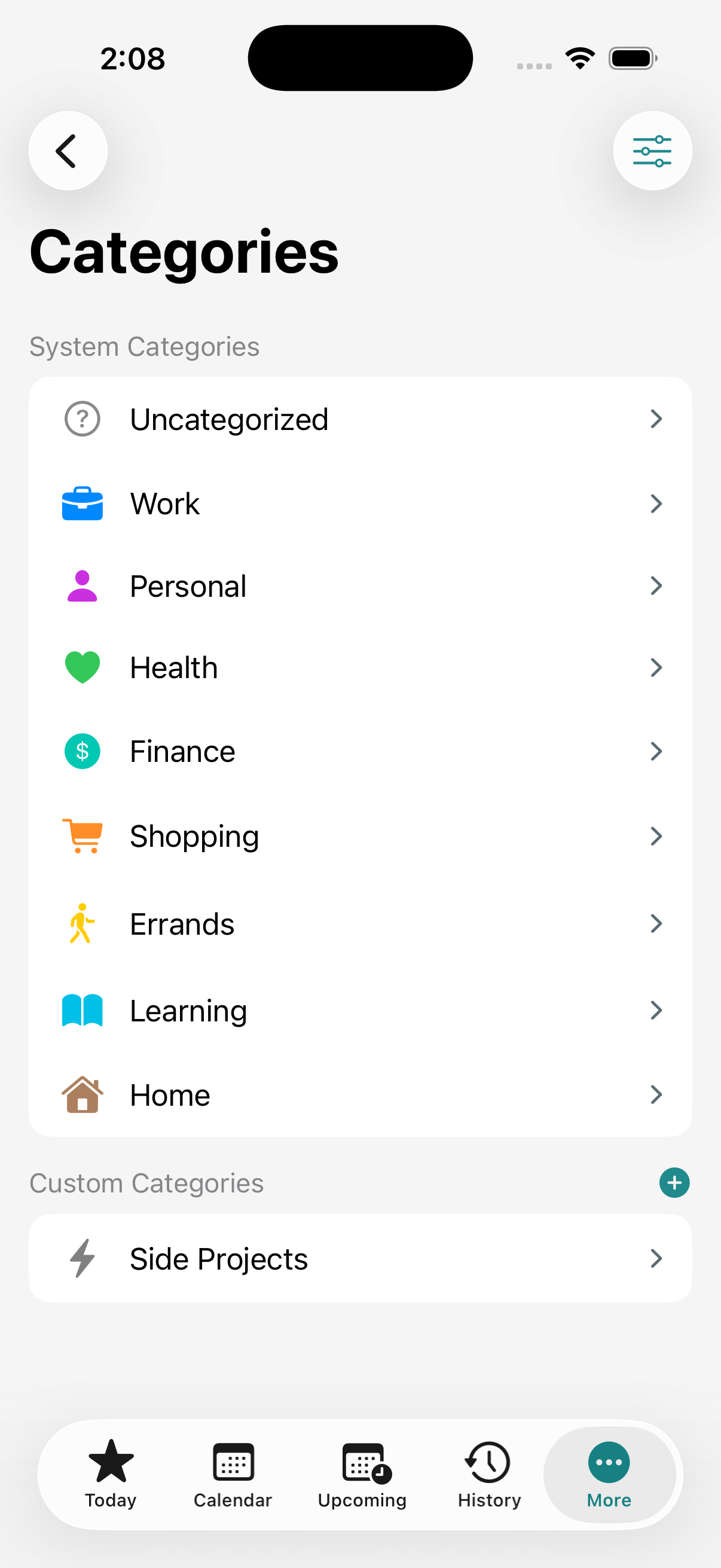
Categories Management
View and manage system and custom categories
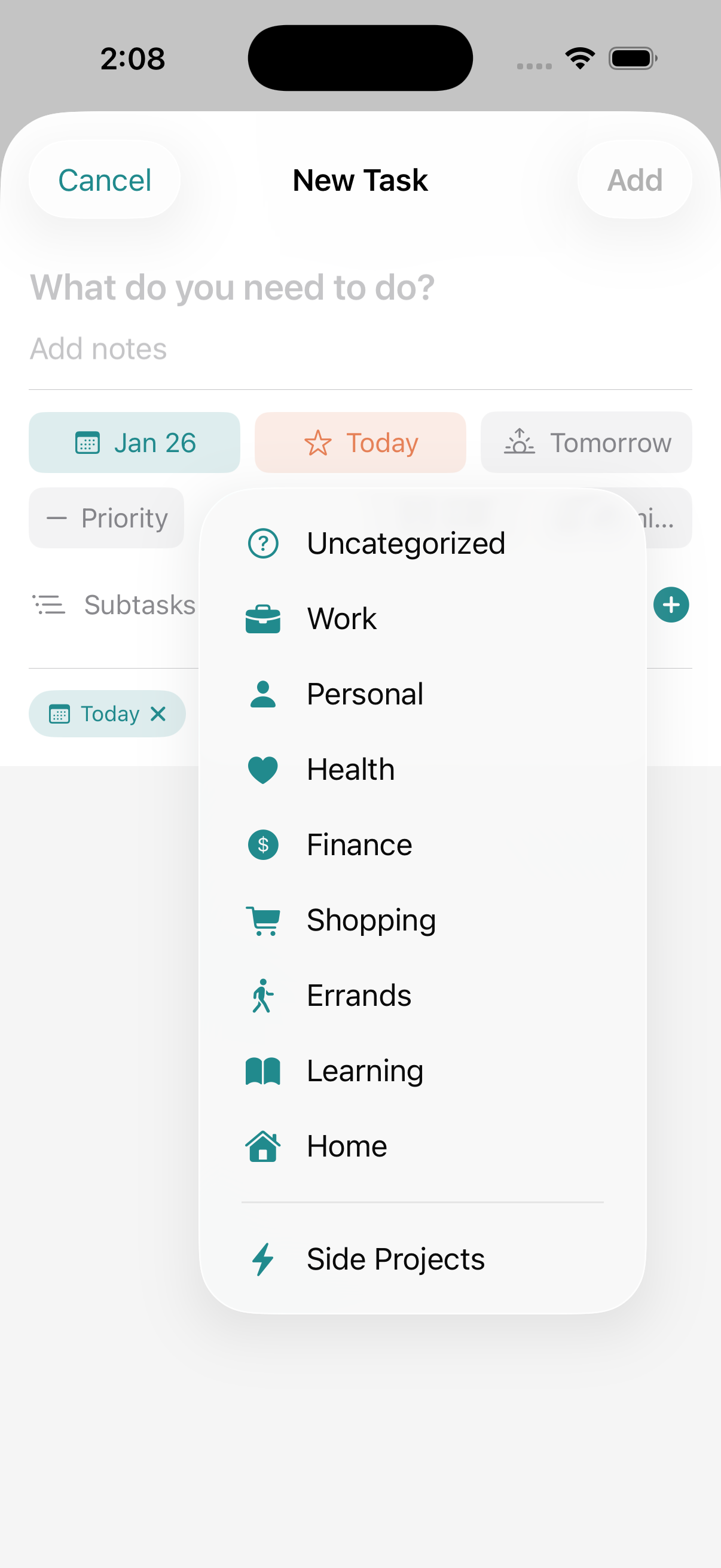
Category Picker
Select from system or custom categories when adding tasks
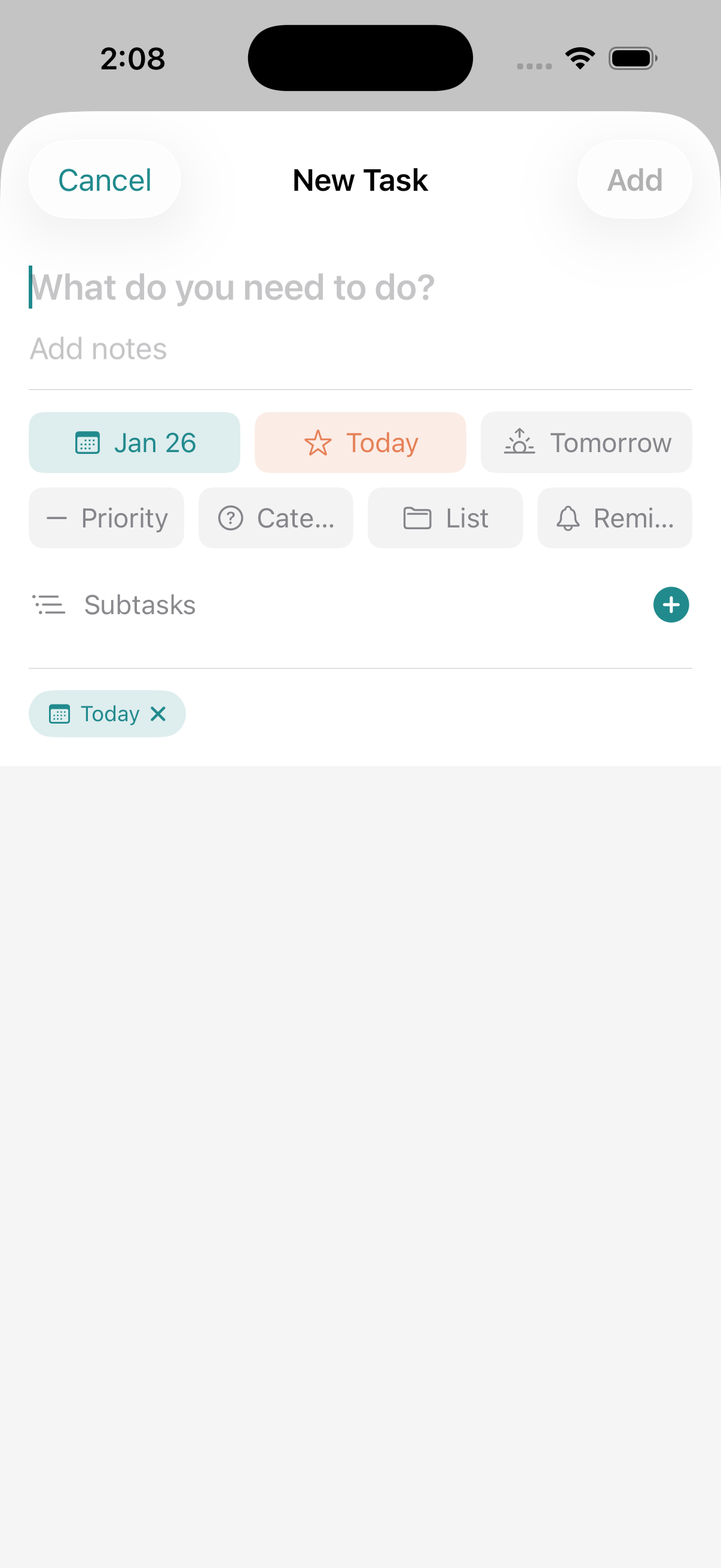
Add Task
Quick task entry with category and list pickers
Recurring Tasks
Set up intraday recurring tasks with hourly reminders or multiple times per day for habits like hydration, medication, or regular breaks.
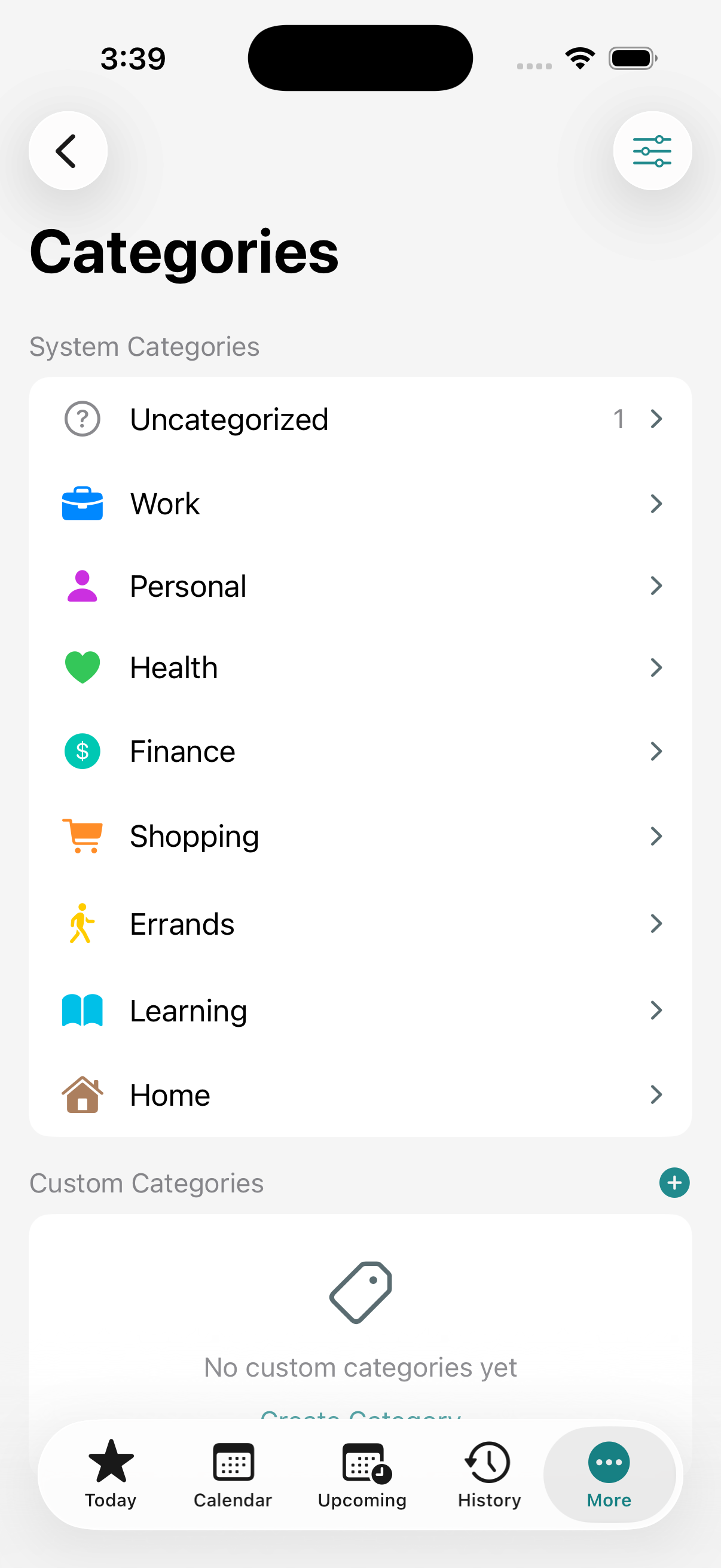
Add Task
Create recurring tasks with duration and reminder options
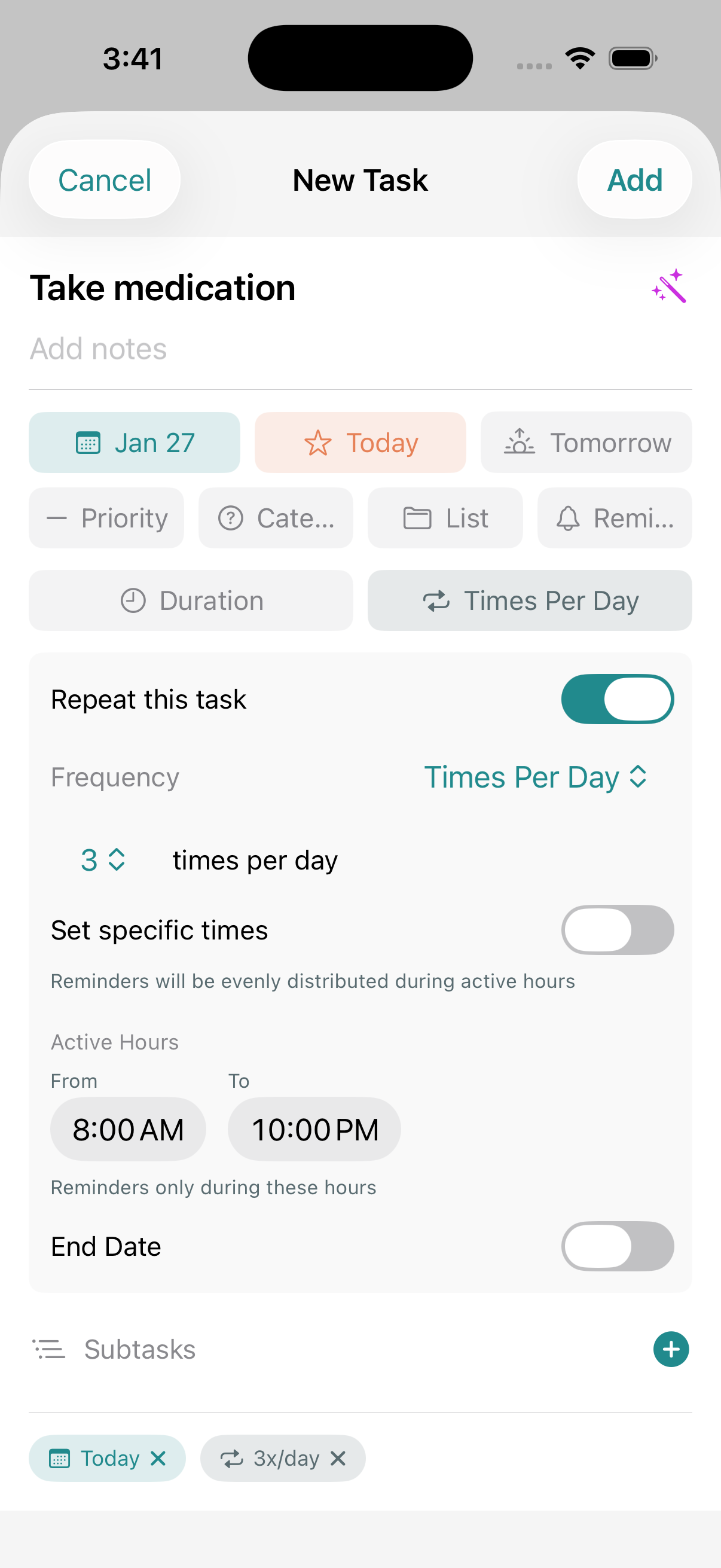
Intraday Recurring
Hourly intervals or X times per day with active hours
Apple Ecosystem
Lazyflow works across iPhone, iPad, and Apple Watch for seamless task management.
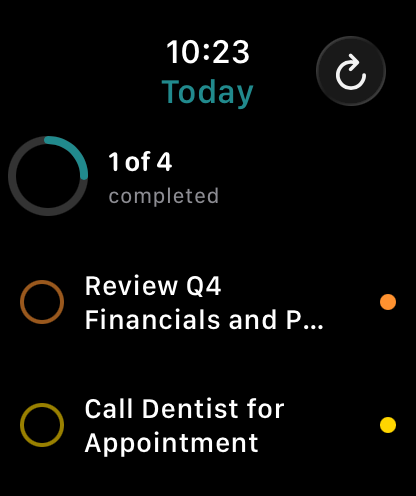
Apple Watch - Today
Today's tasks on your wrist with tap to complete
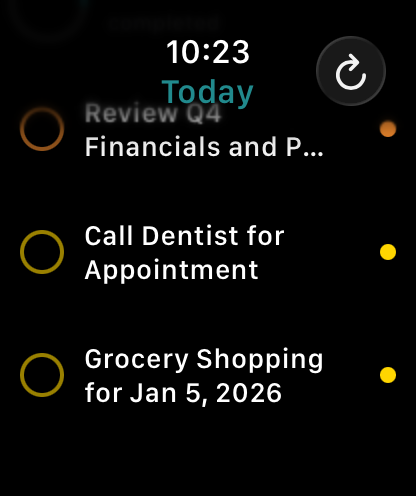
Apple Watch - Tasks
Task list with completion status
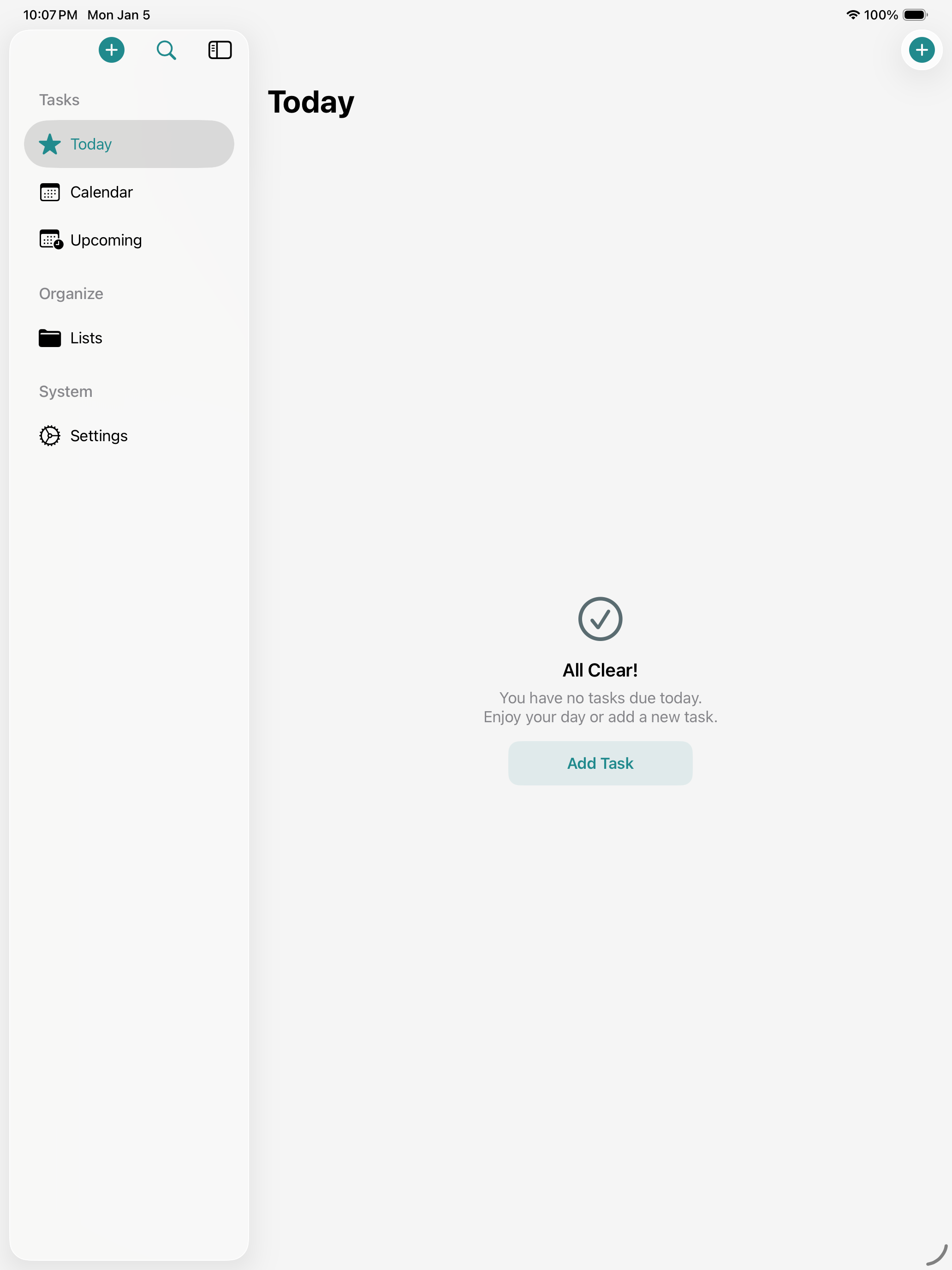
iPad - Today
Sidebar navigation with Today view
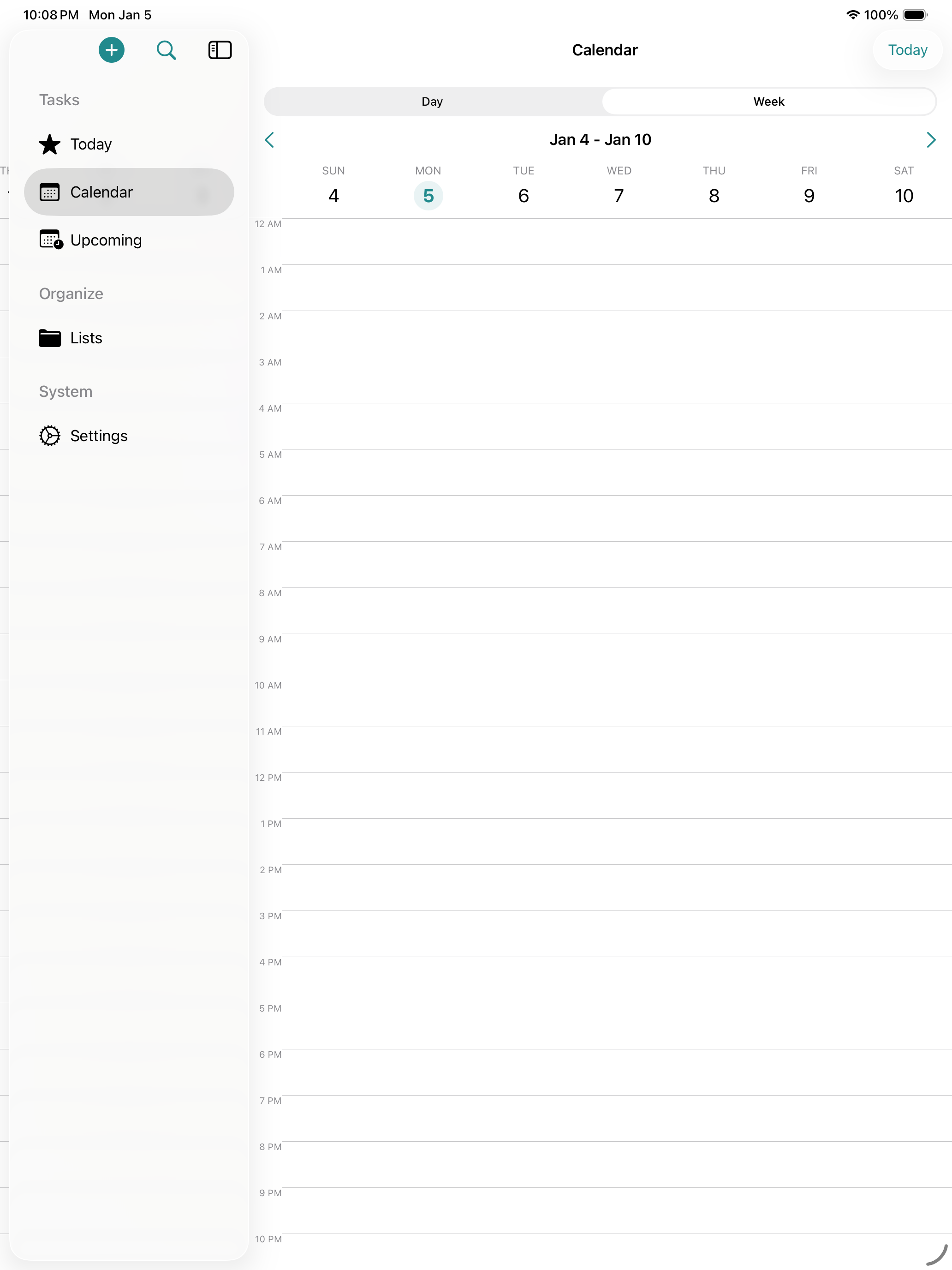
iPad - Calendar
Week view with time grid
Home Screen Widgets
Lazyflow offers multiple widget sizes to keep your tasks visible on the Home Screen.
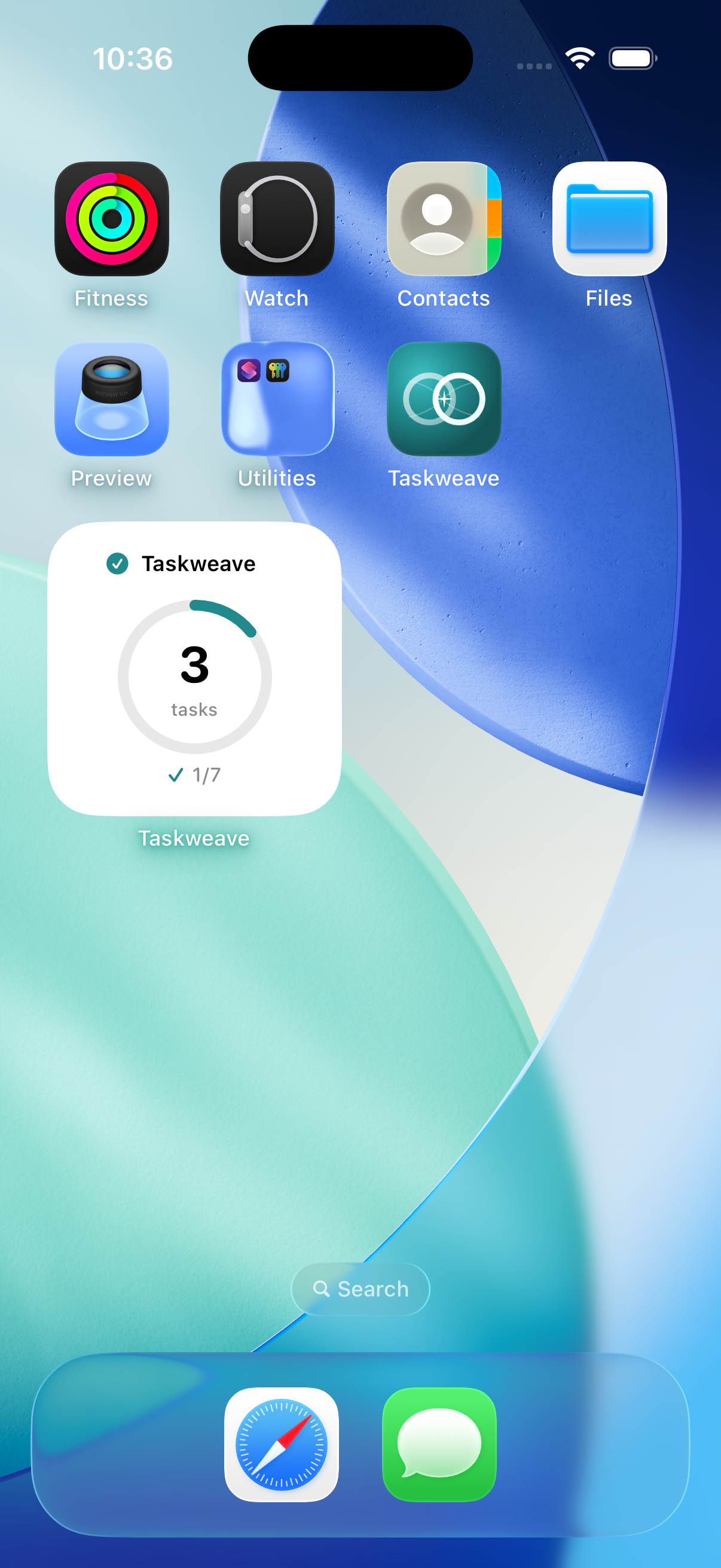
Small Widget
Progress ring with task count at a glance
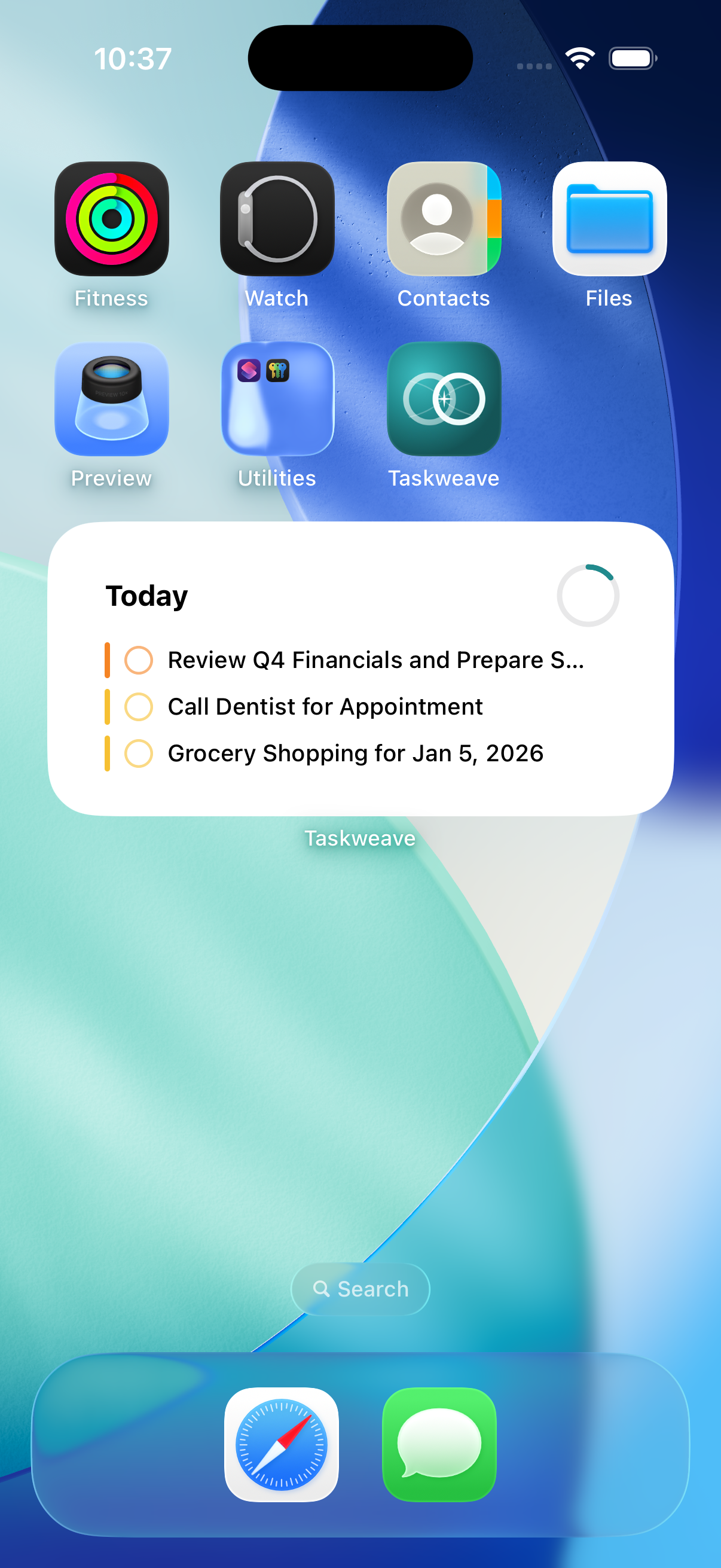
Medium Widget
Today's task list with quick overview
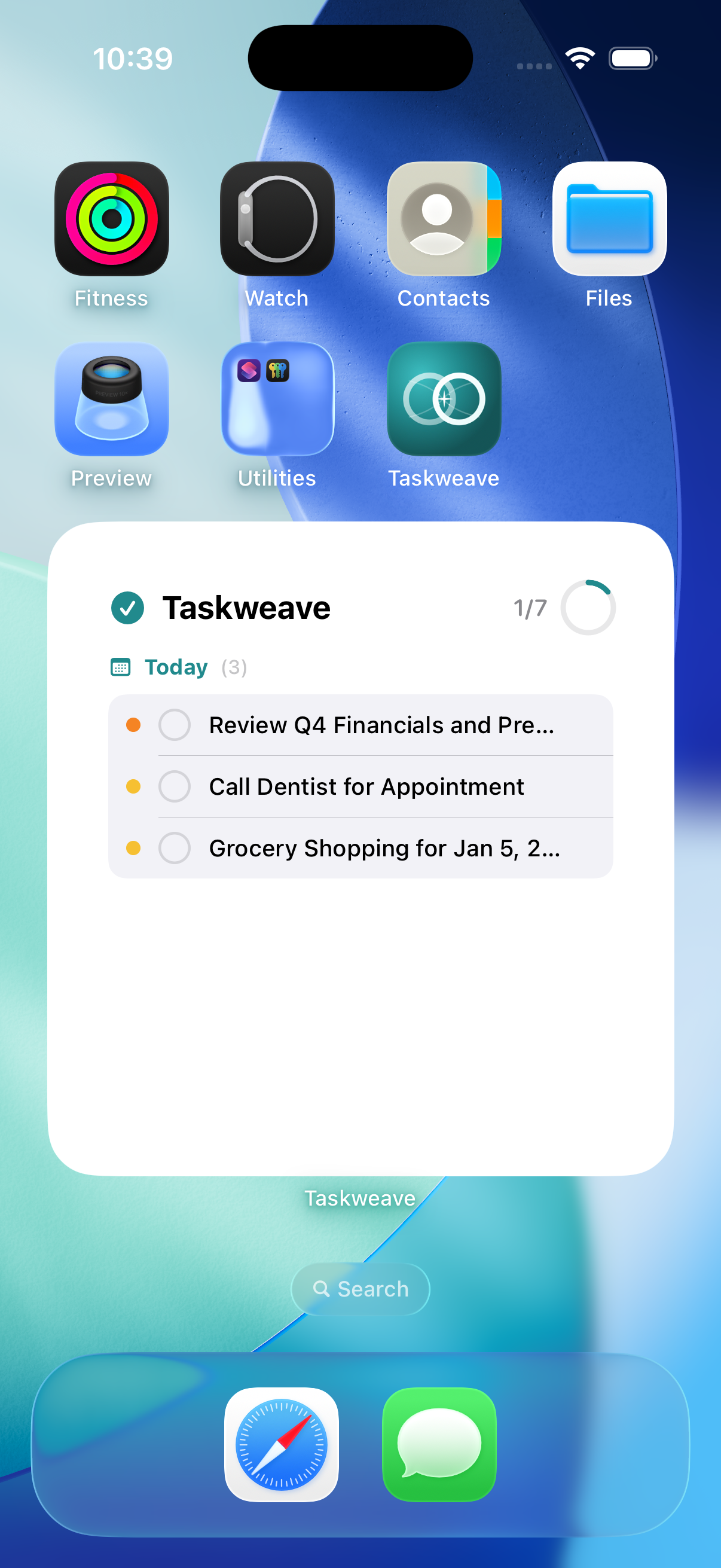
Large Widget
Full task list with progress and categories
Live Activities
Track your task progress in real-time with Dynamic Island and Lock Screen Live Activities.
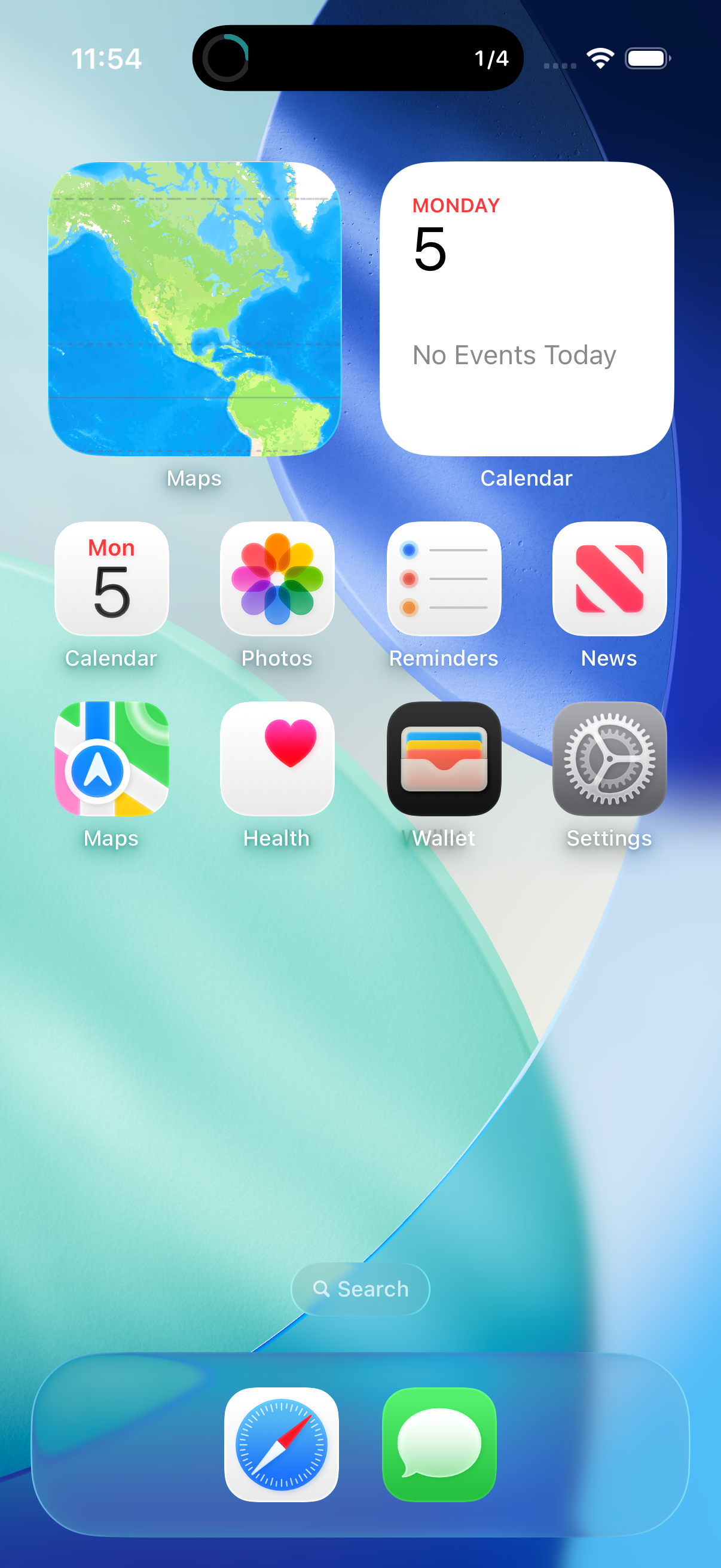
Dynamic Island (Compact)
Compact progress indicator showing task count
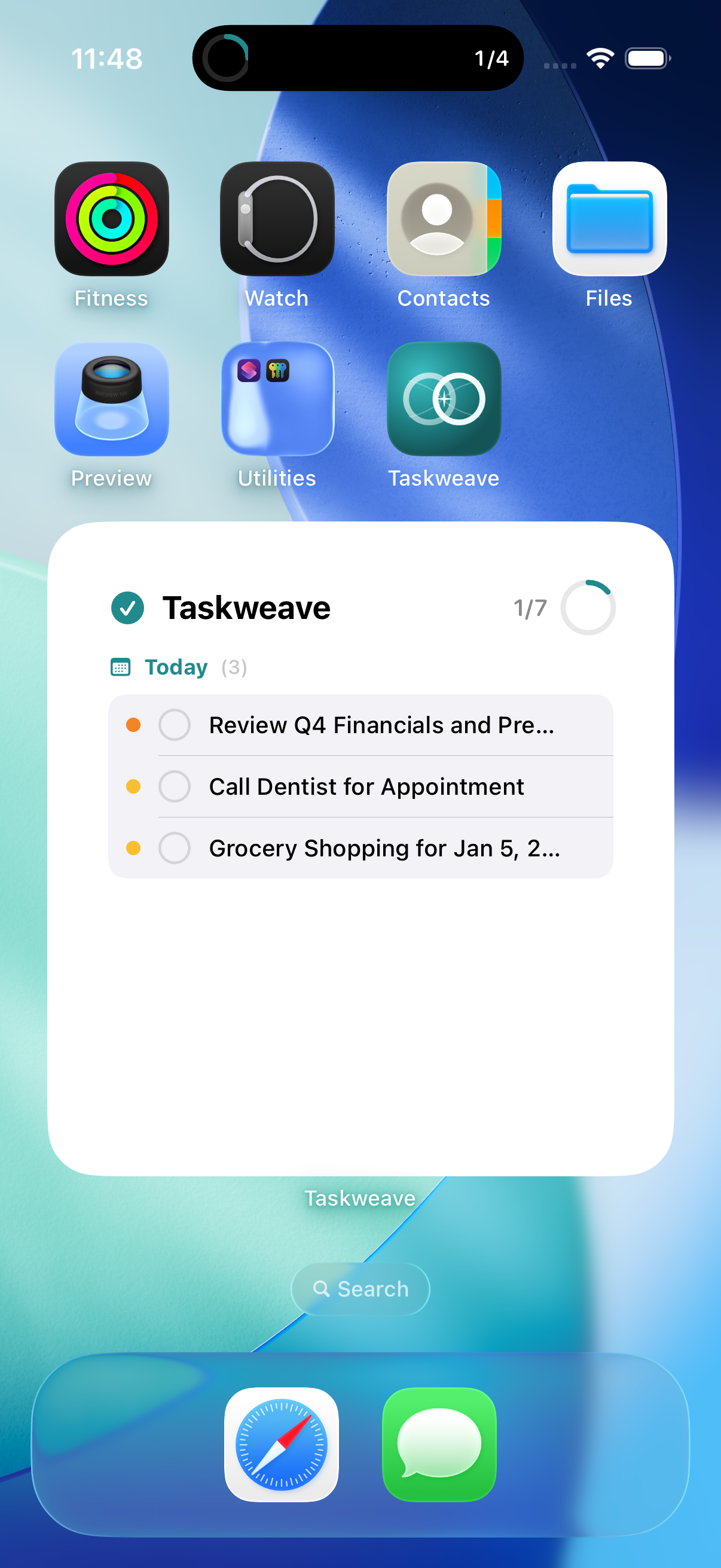
Dynamic Island (Expanded)
Expanded view with task list on long press
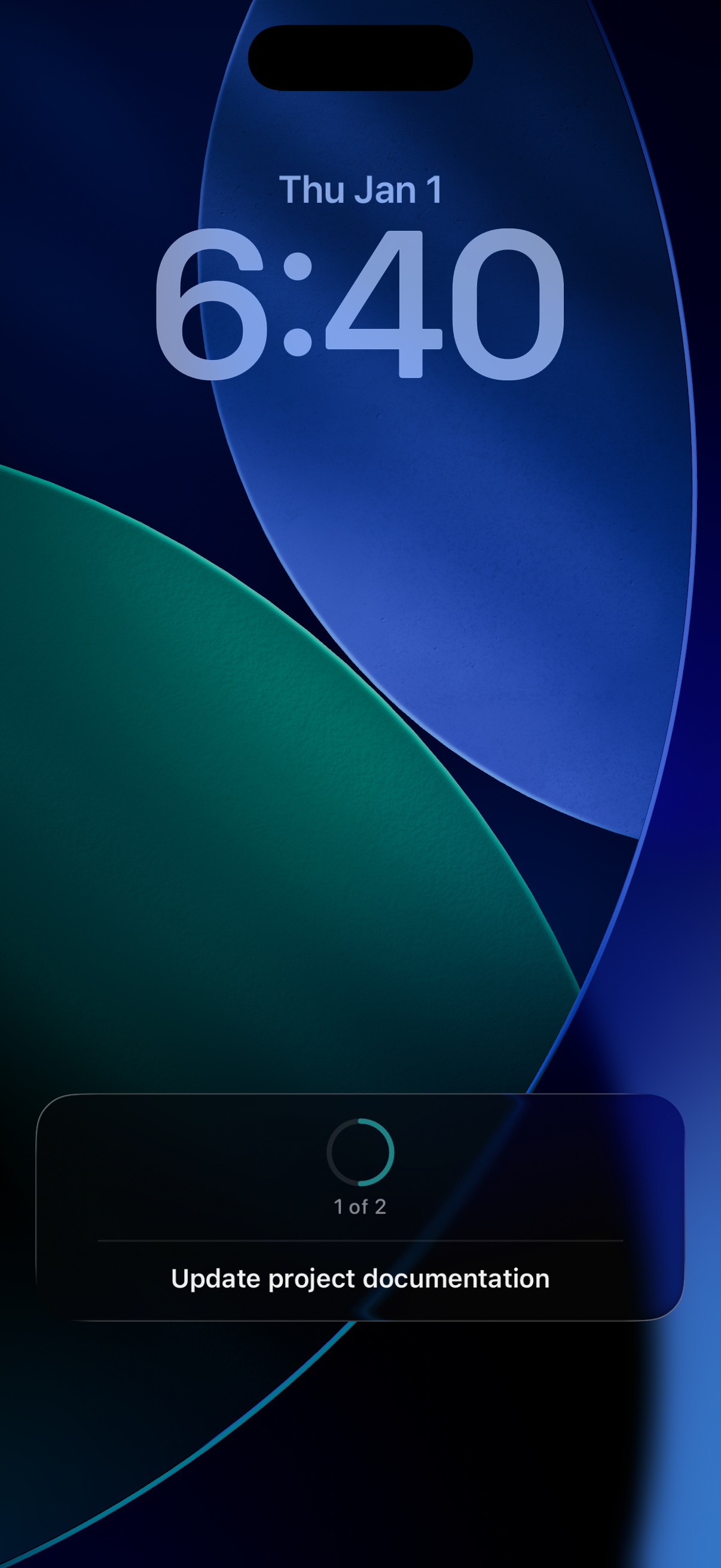
Lock Screen
Current task and progress on the Lock Screen
Color Palette
The Lazyflow color system is designed for accessibility and visual clarity across light and dark modes.
Primary Colors
Accent
#218A8D
Accent Light
#2BA5A8
Accent Dark
#1A6E70
Semantic Colors
Success
#34C759
Warning
#FF9500
Error
#FF3B30
Background Colors
Light Background
#FFFFFF
Light Surface
#F5F5F5
Dark Background
#1F2121
Dark Surface
#2C2C2E
Components
Key UI components following Apple's Human Interface Guidelines with Lazyflow's teal accent.
Bottom Sheet
Medium detent sheet for quick task entry
Task List
Task rows with checkbox, title, and metadata tags
List Navigation
Grouped list with smart lists and custom lists
Light vs Dark Mode
Side-by-side comparison showing how the interface adapts between light and dark appearances.
Light Mode
Clean, bright interface for daytime use
Dark Mode
OLED-friendly dark theme for night use